
How to Stop Spam Calls on iPhone: 8 Settings That Actually Work
It rings during dinner. It rings halfway through a work meeting. It rings at 8 a.m. on a Saturday, and the caller ID shows your own area code — someone who could be a neighbor, a kid’s school, anybody. It’s not. It’s a robocall. If you’re wondering how to stop spam calls on iPhone, the good news is that your phone already has the tools to shut most of them down. The bad news is that they’re buried a few menus deep, and most people never turn them on.
Here’s the plan: eight settings, roughly five minutes of tapping, and your iPhone goes from an open door to a bouncer with a guest list. Some are aggressive — silencing every number you haven’t saved — and some are subtle, like letting your carrier flag the junk for you. Pick the mix that fits your life, and the robocalls start dying on their own.
Why your iPhone keeps getting hammered
Scammers love phones because the math works in their favor. Robocalling software can blast out millions of calls a day for almost nothing, and it only takes a tiny fraction of people answering to make the whole operation profitable. Worse, caller ID spoofing lets them fake the number on your screen, so the call looks local, familiar, even official. That “neighbor” calling with your area code and prefix is very often a computer in another country.
Phone companies have been fighting back with a verification framework that grades how trustworthy a call’s caller ID is, which is why you sometimes see labels like “Spam Likely” on your screen. It helps, but it doesn’t catch everything — plenty of spoofed calls still slip through with a clean-looking number.
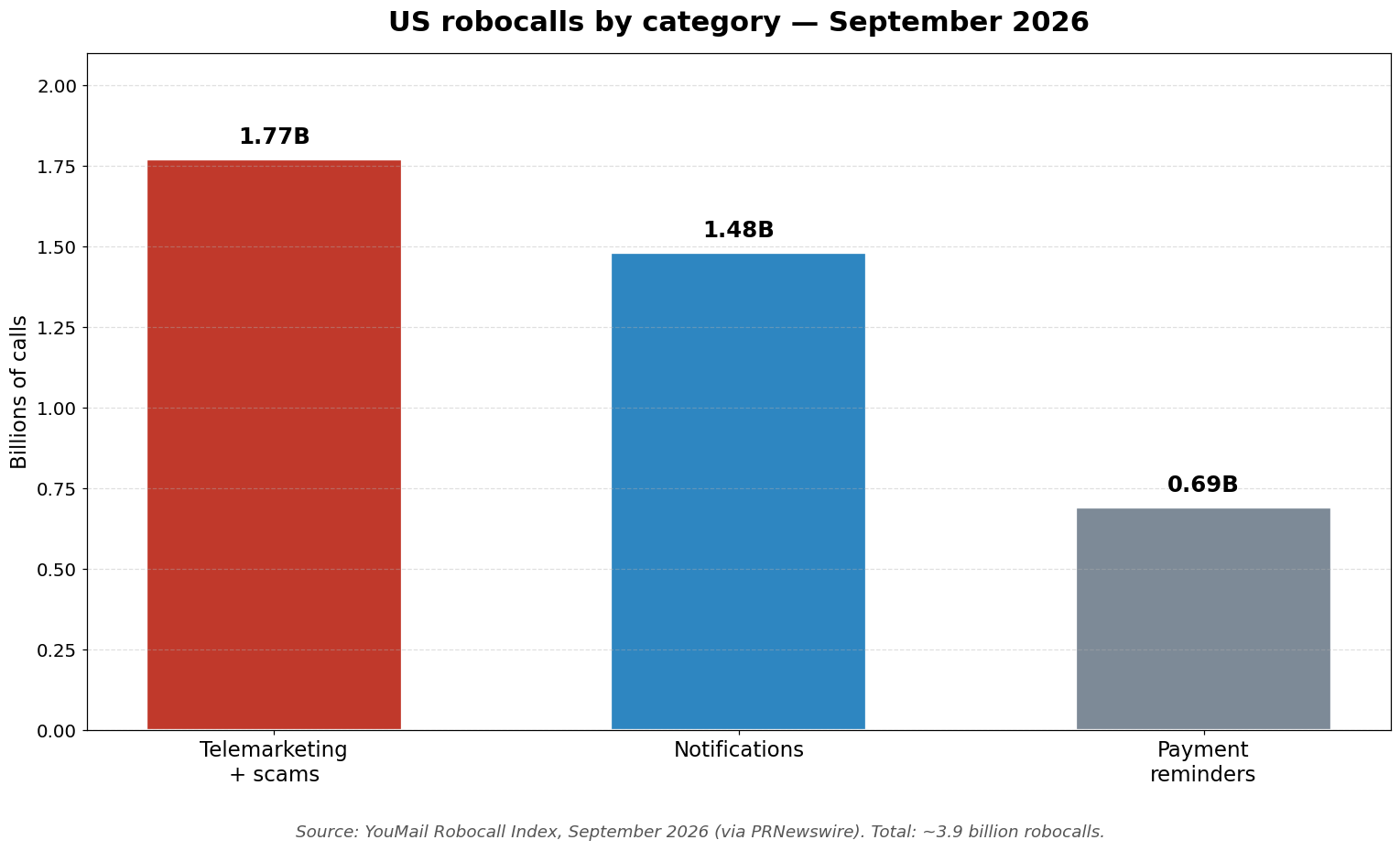
The scale is hard to overstate. According to YouMail’s Robocall Index, Americans received nearly 3.9 billion robocalls in September 2026 alone — about 128 million every single day. There is some good news in the numbers: unwanted calls fell more than 8% to under 1.8 billion, and the 12-month total of 48.2 billion was the lowest since April 2021. But nearly two billion junk calls a month is still a lot of buzzing in a lot of pockets. As the breakdown below shows, telemarketing and outright scams make up the biggest slice by far.
How to stop spam calls on iPhone: the 8 settings that work
Every setting below lives in your iPhone’s Phone settings (and while you’re in there doing phone maintenance, this quick guide to clearing the cache on iPhone is worth a bookmark). They’re ordered from most powerful to most supplementary — start at the top and work down until the ringing stops.
1. Silence unknown callers — the nuclear option
This is the single most effective setting, and it takes ten seconds. Open Settings > Apps > Phone, tap Screen Unknown Callers, and choose Silence. (On older iOS versions, the path is Settings > Phone and the option is a single Silence Unknown Callers switch.)
Once it’s on, any call from a number that isn’t in your contacts, your recent outgoing calls, or your Siri suggestions goes straight to voicemail without ringing. You still see the call in your Recents list, and the caller can still leave a message — your phone just never buzzes.
One honest warning before you flip it: this silences every unsaved number, not just scammers. Your doctor’s office, your kid’s school, the delivery driver, a recruiter calling about a job — all of them go quietly to voicemail. Apple itself recommends adding important numbers to your Contacts first, so spend two minutes saving the numbers that matter. Two more details worth knowing: call screening switches itself off for 24 hours after you call emergency services (so responders can reach you back), and calls aren’t screened while you’re roaming. Apple’s guide to managing unknown callers lays out all of this in full.
2. Let your iPhone ask “who is this?” first
If silencing everything feels too aggressive — maybe you’re job hunting, or you run a business and unknown numbers are how money finds you — pick Ask Reason for Calling in the same Screen Unknown Callers menu instead. Your iPhone answers the call itself, asks the caller to state their name and reason, and shows you a short summary before your phone ever rings. You then decide: accept, decline, or send them to voicemail.
This is the sweet spot for most people. Real callers state their business in a few seconds; robocalls and scammers almost always hang up the moment they’re asked to explain themselves. It turns the tables: instead of you screening calls, the caller has to audition.
3. Turn on the spam filter under Call Filtering
Scroll a little further in Settings > Apps > Phone and you’ll find Call Filtering, with its own set of toggles. Turn on Spam. This one works differently from the settings above: instead of judging callers by whether you know them, it silences calls your carrier has already flagged as suspected spam or fraud. They don’t ring, and they land in a dedicated Spam list you can check whenever you want.
Think of it as a second opinion. Screen Unknown Callers handles the “I don’t know you” case; the Spam filter handles the “somebody already reported you” case. They stack nicely, so turn both on.
4. Tidy your call list with the Unknown Callers filter
In the same Call Filtering section, toggle on Unknown Callers. This doesn’t silence anything — it organizes. Missed calls and voicemails from unsaved numbers get moved into their own Unknown Callers list, keeping your main Recents list clean and readable.
To check the filtered lists later, open the Phone app and tap the Filter button — you’ll see Unknown Callers and Spam as separate views. If a real person ends up screened, you can mark their number as a known caller from that list so it rings normally next time.
5. Switch on Live Voicemail — read before you answer
Here’s the setting that makes silencing unknown callers completely painless. In your Phone settings, turn on Live Voicemail. When a silenced caller starts leaving a message, your iPhone transcribes it in real time on your screen — and if it turns out to be your dentist confirming tomorrow’s appointment, you can pick up mid-message.
This closes the loop on the biggest fear people have about silencing unknown numbers: missing something important. You don’t miss it. You read it as it happens and decide. Make sure voicemail is set up on your line first, since silenced callers have nowhere else to go.
6. Block repeat offenders by hand
Some spam isn’t spoofed — it’s the same stubborn number calling every Tuesday. For those, open the Phone app, go to Recents, tap the info icon next to the number, and choose Block this Caller. You can do the same from any contact card. Blocked numbers can’t call, text, or FaceTime you.
Blocking is a scalpel, not a shield: scammers who rotate through thousands of spoofed numbers will just call from a new one tomorrow. But for persistent individual nuisances — the “extended car warranty” outfit that keeps using the same line — it’s satisfying and effective.
7. Turn on your carrier’s free spam blocking
Your carrier is fighting this war too, at the network level. Most major carriers now include some form of free spam and scam call protection — features that identify and sometimes block suspicious calls before they ever reach your phone. Check your carrier’s app or your account settings online and make sure it’s switched on.
This is also what the regulators recommend: the FCC specifically advises consumers to talk to their phone company about the call-blocking tools available on their line. Carrier-level blocking works underneath Apple’s settings, so the two combine into a layered defense instead of competing with each other.
8. Register on the National Do Not Call Registry
The settings above are technical fixes; this one is legal. The National Do Not Call Registry, run by the FTC, is the free federal list that tells legitimate telemarketers to leave you alone. Registering takes two minutes: enter your number at donotcall.gov, or call 1-888-382-1222 from the phone you want to register.
Your number shows up on the registry the next day, and legitimate telemarketers are required to stop calling within 31 days. Registration never expires, and it costs nothing — anyone who tries to charge you for it is running a scam. The honest caveat: the registry only binds law-abiding companies. Outright scammers ignore it completely. So if the calls keep coming after 31 days, that’s actually useful information — it means you’re dealing with criminals, not salespeople. Hang up, block the number, and file a complaint with the FTC.
Habits the settings can’t replace
Even with everything above turned on, a determined spoofer will occasionally slip through. What you do in that moment matters more than any toggle:
Don’t answer unknown numbers. If you do pick up and hear silence or a robovoice, hang up immediately. Never press a button to “be removed from the list” — scammers use that to confirm your number is live, and the calls multiply. Never answer questions with “yes,” either; your voice can be recorded and misused.
Never hand over personal information on an incoming call you didn’t expect — no account numbers, no Social Security number, no passwords. If someone claims to be your bank or a government agency, hang up and call the number on your statement or the agency’s official website. Spam calls often arrive hand-in-hand with phishing texts, so it pays to know how to spot a phishing email too — the same instincts apply.
Forward spam texts to 7726 (SPAM). Your call settings don’t touch text messages, but most carriers let you report junk texts by forwarding them to 7726. Those reports feed the carrier’s spam detection, which makes the Spam filter in setting #3 smarter for everyone. You can also turn on Filter Unknown Senders in your Messages settings to keep unknown texts out of your main inbox.
Report the worst offenders. Filing complaints doesn’t get your money back, but it feeds the enforcement machine — regulators use complaint data to track down illegal robocall operations. The FCC’s guide to stopping unwanted robocalls and texts walks through your reporting options and more defensive tips.

Frequently Asked Questions
Will Silence Unknown Callers block calls from my doctor’s office or delivery driver?
Yes — if the number isn’t saved in your contacts. That’s the trade-off. Before turning it on, save the numbers that matter: your doctor, your kid’s school, your pharmacy, frequent delivery services. And remember that silenced calls still go to voicemail, so with Live Voicemail on you can read the message as it arrives and pick up mid-call if it’s legitimate.
Do these settings block spam text messages too?
No. The call settings only affect voice calls. For texts, forward spam messages to 7726 (SPAM) so your carrier can act on them, and turn on Filter Unknown Senders in the Messages settings to keep unknown senders out of your main inbox.
I registered on the Do Not Call list but still get spam calls. Why?
The National Do Not Call Registry only stops legitimate telemarketers — companies that follow the law. Scammers and overseas robocall operations ignore it entirely. If calls continue more than 31 days after you registered, treat them as scams rather than sales pitches: don’t engage, block the number, and report them to the FTC.
Will silencing unknown callers block emergency calls or important alerts?
No. If you call emergency services, call screening automatically switches off for 24 hours so responders can call you back. Wireless emergency alerts (weather warnings, AMBER alerts) are a completely separate system and are unaffected. The only limitation is that calls aren’t screened while you’re roaming.
Is it worth installing a third-party call-blocking app?
For most people, no — the built-in iPhone settings plus your carrier’s free spam protection cover the vast majority of cases, and third-party apps require broad access to your call data. If you get an unusual volume of spam, a reputable blocker can add another layer, but never pay anyone to register you on the Do Not Call list. That’s always free at donotcall.gov.
Conclusion
Stopping spam calls on iPhone isn’t about one magic switch — it’s about stacking defenses. Silence or screen the unknown callers, let your carrier flag the known spam, read your voicemail live so nothing important slips past, and put your number on the Do Not Call Registry to cut off the legal telemarketers. Five minutes of setup, and your phone finally behaves like it belongs to you again.
And once the robocalls stop interrupting your day, you might notice how much calmer everything feels. If that quiet has you thinking about reclaiming your attention more broadly, this digital detox guide is the natural next step.