
How to Free Up Storage on iPhone: 12 Fixes That Reclaim Gigabytes
There is a particular kind of frustration that only iPhone owners know: you try to take a photo, record a video, or install an update, and the phone refuses — “iPhone Storage Full.” Suddenly you are deleting apps in a panic, losing photos you wanted to keep, and wondering where all those gigabytes went. If that sounds familiar, learning how to free up storage on iPhone is a skill worth having before the next “storage full” warning appears.
The good news is that most of the space on a full iPhone is recoverable, and the fixes are straightforward. Deleted photos sitting in Recently Deleted, apps you have not opened in a year, message threads full of videos, and a bloated System Data category are the usual culprits. This guide walks through twelve fixes in order of impact, from the thirty-second wins to the deeper cleanups, and explains what iCloud can and cannot do for you. Work through them in order and you can typically reclaim several gigabytes in under half an hour.
Start Here: See What’s Eating Your Storage
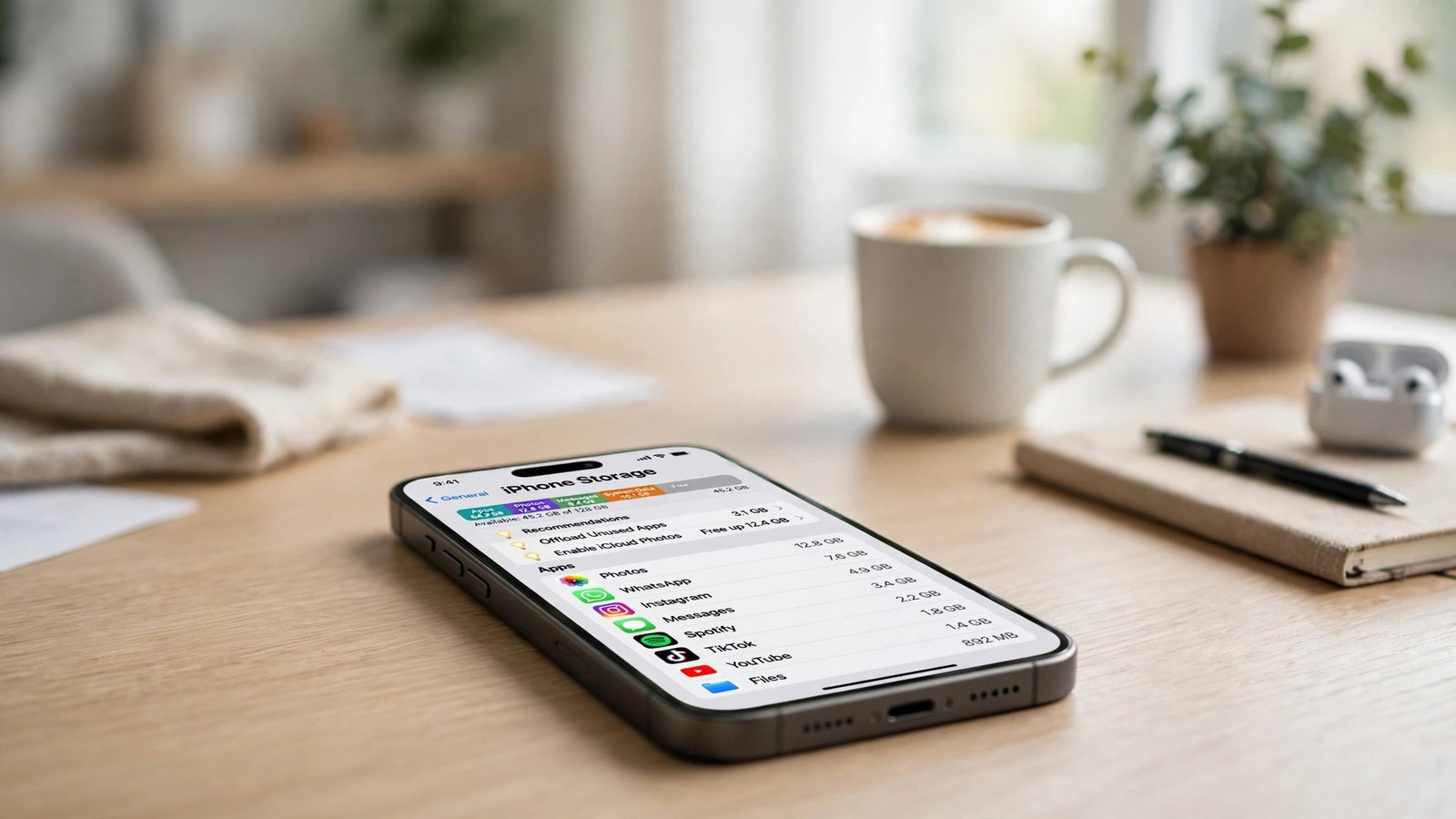
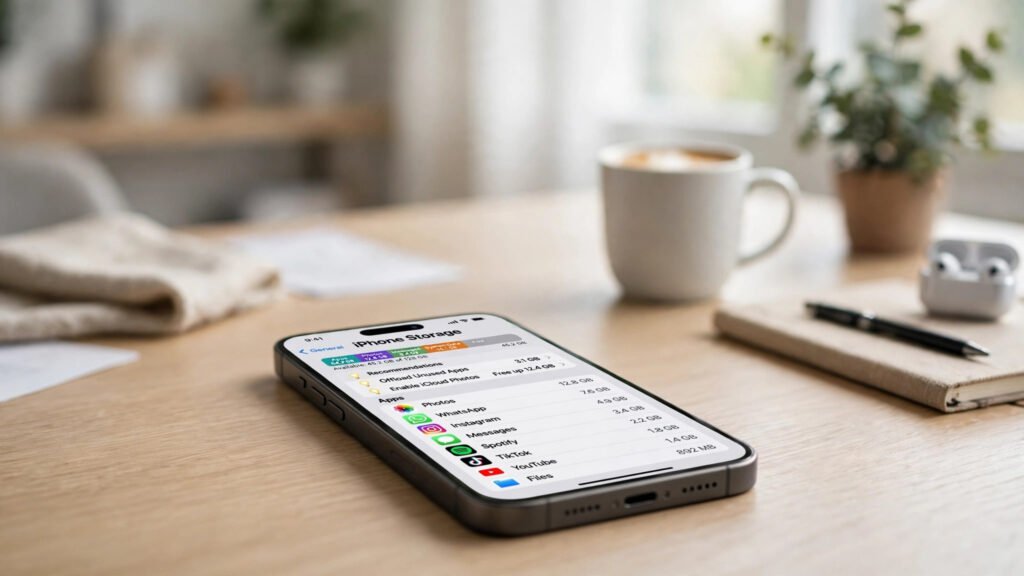
Before you delete anything, look at the actual numbers — seeing the breakdown is the first step in how to free up storage on iPhone. Go to Settings > General > iPhone Storage. At the top you will see a coloured bar showing how your storage is divided, and below it a list of categories sorted by size. Tap Show All to see the full list, and read the recommendations Apple shows at the top — they are usually worth following, and they are tailored to your phone.
The bar tells you where to start. If Photos is the biggest slice, the photo fixes below will help most. If Apps dominates, start with offloading. If System Data is huge, the fixes are more limited, but there are still things you can do. The table below explains what each category actually holds, so you know what you are clearing before you clear it.
| Category | What it holds | How to clear it |
|---|---|---|
| Apps | Apps and their documents and data | Offload or delete unused apps |
| Photos | Photos, videos, and the Recently Deleted album | Empty Recently Deleted, merge duplicates, use Optimize Storage |
| Messages | Texts, photos, videos, and attachments in conversations | Delete old threads, empty Recently Deleted, shorten retention |
| Downloaded messages and attachments | Delete old mail, remove and re-add the account | |
| System Data | Siri voices, fonts, dictionaries, logs, caches, Spotlight index, Keychain/CloudKit data | No direct button — restart, update iOS, let iOS manage it |
| iOS | The operating system itself | Update iOS; the size is largely fixed |
How to Free Up Storage on iPhone: The 12 Fixes
The twelve fixes below are grouped by category and ordered by impact. Fixes 1 to 3 cover apps, 4 to 6 cover photos, 7 to 9 cover Messages, Mail, and Safari, and 10 to 12 cover System Data and iOS. You do not need to do all twelve — most people reclaim enough space with the first six. But if your phone is still full after those, the later fixes are worth working through.
Fixes 1–3: Apps — Offload, Delete, and Auto-Offload
The app fixes are the easiest part of how to free up storage on iPhone. Start with the apps you do not use: in the iPhone Storage list, tap any app to see how much space it takes and how much of that is the app itself versus its documents and data. A streaming app with gigabytes of downloaded shows, or a game with a huge cache, can be bigger than you expect. For apps you still want, tap Offload App: this removes the app itself but keeps its documents and data, so when you reinstall it later, everything is still there. For apps you no longer want, tap Delete App, which removes both the app and its data.
The difference matters. Offloading a rarely used app frees the app’s size — often several hundred megabytes — while keeping your data safe. Deleting frees everything but loses the data. If you are unsure, offload first; you can always delete later. Then turn on auto-offload so the phone does this for you in future: go to Settings > Apps > App Store and turn on Offload Unused Apps. On older versions of iOS the same setting lives at Settings > App Store. The phone will automatically offload apps you have not used in a while, keeping your data, and it will never offload an app you have used recently.
Also check the apps at the top of the storage list for downloaded content. Music, podcast, and video apps often hold large offline libraries you have forgotten about. Deleting a few downloaded playlists or episodes inside the app frees space without touching the app itself. Our guide on how to clear cache on iPhone goes deeper into app caches and the settings that control them.

Fixes 4–6: Photos — Recently Deleted, Duplicates, and Optimize
Photos are where most people find the biggest wins in how to free up storage on iPhone, and the fastest win is one people miss: deleted photos do not actually leave your phone for 30 days. They sit in the Recently Deleted album, still taking up space. Open Photos, go to Albums, scroll to Recently Deleted, tap Select, then Delete All. That alone can free gigabytes if you have been deleting photos recently. The same rule applies to Messages, where deleted conversations sit in Recently Deleted for up to 30 days — empty that too.
Next, deal with duplicates. In Photos, go to Albums > Duplicates, where iOS groups identical or near-identical photos. Tap Merge to keep the best copy and delete the rest. Duplicates are common if you take burst photos or share images between apps. Then review your videos: ten old videos free more space than a thousand photos. In Photos, go to Albums > Media Types > Videos, sort by size, and delete the long clips you no longer need — after backing them up first, of course.
The third photo fix is the most important one for the long term: turn on Optimize iPhone Storage. Go to Settings, tap your name, then iCloud, then Photos, and select Optimize iPhone Storage. The phone keeps small, space-efficient versions of your photos on the device and stores the full originals in iCloud. Your photos still look the same on the phone, and the full-resolution version downloads automatically when you open one. The catch is the free iCloud plan is only 5 GB, so a large photo library may need a paid iCloud+ plan — or another backup service. A Google account includes up to 15 GB of storage shared across Google services, which is a useful alternative for photo backup. The Applio guide to freeing iPhone storage walks through the same photo steps with screenshots if you want a visual reference.

Fixes 7–9: Messages, Mail, and Safari
Messages quietly accumulate a surprising amount of storage. Every photo, video, and GIF in a conversation is stored on your phone, and group chats with years of media can run into gigabytes. In the iPhone Storage list, tap Messages to see the breakdown. Delete old conversations you no longer need, and inside the ones you keep, delete large attachments: open a conversation, tap the contact name, scroll to Photos, and delete the videos you do not need. Then empty Messages’ Recently Deleted folder, just as you did for Photos.
For the future, shorten how long Messages keeps history. Go to Settings > Apps > Messages > Keep Messages and choose 30 Days or 1 Year instead of Forever. Old messages will be deleted automatically once they pass the limit. Mail is the next stop: the Mail app stores downloaded messages and attachments, and a mailbox full of newsletters with images adds up. Delete old mail in bulk — search for large senders and delete their messages — and if Mail is still huge, remove the account and re-add it, which clears the local cache while your mail stays on the server.
Safari is the smallest win, but quick. Clearing your history and website data frees a little space — and, more importantly, signs you out of most websites, so be ready to sign back in. Go to Settings > Apps > Safari > Clear History and Website Data. The TechDows guide to managing iPhone storage covers the Messages and Mail steps in detail, and it is a good reference if you want to double-check the menu paths on your version of iOS.
Fixes 10–12: System Data and iOS — What You Can and Can’t Clear
System Data is the hardest part of how to free up storage on iPhone, because there is no button to clear it. It holds Siri voices, fonts, dictionaries, logs, caches, the Spotlight search index, and Keychain and CloudKit data. iOS manages it automatically, and it grows and shrinks on its own as the phone works. There is no setting that empties it directly — any guide that claims otherwise is selling you something.
There are still three things you can do. First, restart your iPhone. A restart clears temporary caches and can shrink System Data by hundreds of megabytes. Second, update iOS: go to Settings > General > Software Update and install any available update. Newer versions of iOS are often more efficient with storage, and the update process itself clears stale caches. Third, check your downloaded Siri voices and dictionaries: go to Settings > General > Keyboard > Keyboards and remove languages you do not use, and in Settings > Accessibility > Spoken Content, remove Siri voices you do not need. These are small wins, but they add up.
The iOS category itself is largely fixed in size, and there is nothing to clear there. If iOS seems unusually large, an update is the only real remedy. And if System Data stays stubbornly huge after a restart and an update, the honest answer is that a backup and restore is the nuclear option: back up to iCloud or a computer, erase the phone, and restore. That clears every cache at once, but it takes an hour or more and should be a last resort, not a first step.
iCloud: What It Does and Doesn’t Do
iCloud is the most misunderstood part of iPhone storage, so it is worth a clear explanation. iCloud+ adds iCloud space — not phone space. Paying for a bigger iCloud plan does not directly free storage on your phone. What it does is enable the features that free phone space: Optimize iPhone Storage, which moves full-resolution photos to iCloud, and iCloud Backup, which stores a copy of your phone’s data in the cloud.
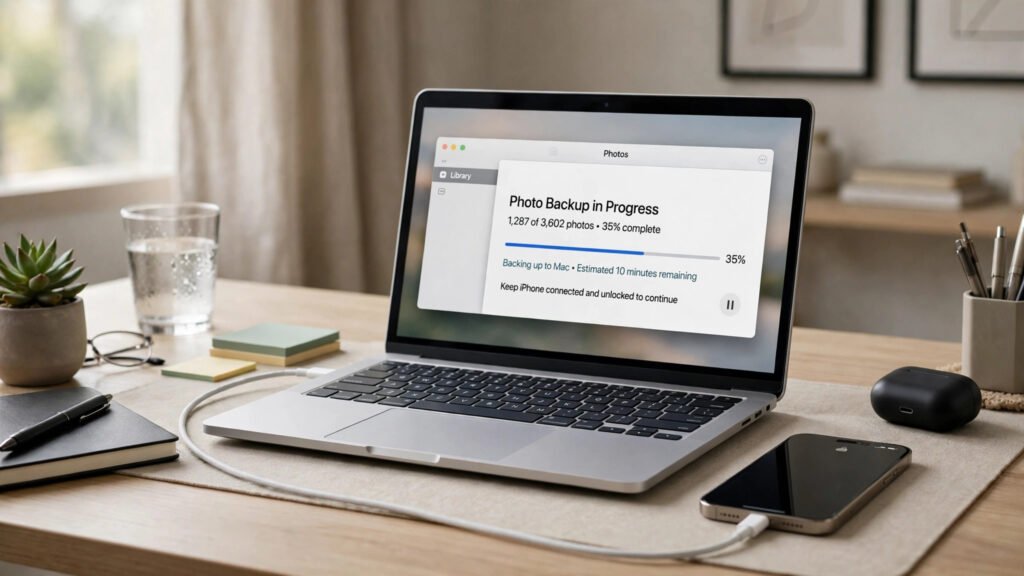
The key distinction: iCloud Backup does not free phone space. It is a safety copy, not a storage solution. The feature that actually frees space is Optimize iPhone Storage, and it only works well if you have enough iCloud space to hold your full-resolution photos. With the free 5 GB plan, most people run out of room quickly. That is the moment to decide whether a paid iCloud+ plan is worth it, or whether a computer backup is the better route — plug the phone into a laptop, back up your photos, and delete the originals from the phone. The Apple iCloud page explains the current plans and prices, and Apple Support has the official steps for every fix in this guide.
If you go the computer route, back up before deleting anything. A backup you have not verified is not a backup. After the backup completes, check that the photos are actually on the computer before deleting them from the phone. And remember that deleting a photo from the phone also deletes it from iCloud Photos if that feature is on — so if you want the photo gone from the phone but kept in the cloud, use Optimize iPhone Storage, not deletion. For more on keeping your phone running well, see our guides on how to make iPhone battery last longer and how to speed up a slow laptop.
Frequently Asked Questions
Why is my iPhone storage full when I don’t have many apps?
Apps are rarely the whole story. Photos and videos are usually the biggest category, followed by Messages attachments and System Data. Check Settings > General > iPhone Storage — the culprit is almost always Photos, Recently Deleted, or System Data, not the number of apps.
Does offloading an app delete my data?
No. Offload App removes the app itself but keeps its documents and data on the phone. When you reinstall the app, your data is still there. Delete App removes both the app and its data. If you are unsure, offload first — you can always delete later.
How do I free up storage on iPhone without deleting photos?
Turn on Optimize iPhone Storage, which keeps small versions on the phone and full originals in iCloud. Back up your photos to a computer or another cloud service, then delete the originals from the phone. And empty the Recently Deleted album — deleted photos still take up space for 30 days.
What is System Data and can I delete it?
System Data holds Siri voices, fonts, dictionaries, logs, caches, the Spotlight index, and Keychain and CloudKit data. There is no button to clear it — iOS manages it. A restart and an iOS update can shrink it, and removing unused Siri voices and keyboards helps a little. A backup and restore is the only way to clear it fully.
Does buying more iCloud storage free up space on my phone?
Not directly. iCloud+ adds cloud space, not phone space. It enables Optimize iPhone Storage, which is what actually frees phone space by moving full-resolution photos to iCloud. iCloud Backup alone does not free any phone space.
How often should I clean up my iPhone storage?
Once every few months is enough. Turn on auto-offload and Optimize iPhone Storage so the phone manages itself, empty Recently Deleted after a big clear-out, and check the storage screen whenever you get a “storage full” warning or before a big trip.
Conclusion
Knowing how to free up storage on iPhone is mostly about knowing where the space actually is. Start at Settings > General > iPhone Storage, empty Recently Deleted in Photos and Messages, offload the apps you do not use, turn on Optimize iPhone Storage, and let auto-offload handle the future. Those five steps reclaim gigabytes for most people in under half an hour. System Data will always be partly out of your control, but a restart and an update keep it in check. Do the cleanup once, set the automatic options, and the “storage full” warning becomes a rare event instead of a regular one.