
It boots like it’s wading through mud. Apps take forever to open. The fan screams during a video call. If you’re wondering how to speed up a slow laptop, you’re not alone — and you probably don’t need a new machine. Most sluggish laptops are slow for fixable reasons: bloated startup programs, a stuffed hard drive, too many browser tabs, or software that’s quietly working against you.
This guide walks through ten fixes in order, from the free five-minute wins to the hardware upgrades worth paying for. Start at the top and work down — most people see a real difference before they reach the bottom, without spending a cent. Windows instructions come first with Mac notes where they differ.
First, Diagnose: Find Out What’s Actually Slowing You Down
Before changing anything, spend two minutes finding the bottleneck. Guessing wastes time; diagnosing takes seconds.
On Windows: press Ctrl + Shift + Esc to open Task Manager, then click the Processes tab. Sort by CPU, then by Memory, then by Disk. Whatever sits at the top during normal use is your prime suspect.
On Mac: press Cmd + Space, type “Activity Monitor,” and check the CPU and Memory tabs the same way.
Common patterns and what they mean:
- Memory at 80–90%+ constantly: too many programs/tabs open, or you genuinely need more RAM.
- Disk at 100%: a nearly-full drive, a failing hard drive, or an aggressive background process (like an antivirus scan or Windows update).
- One app eating huge CPU: that specific program is the problem — update it, replace it, or limit it.
- Everything looks normal but it’s still slow: likely an old mechanical hard drive or thermal throttling from dust and heat.
Write down what you find. Now work through the fixes below, starting with whichever matches your diagnosis.
1. Disable Unnecessary Startup Programs
Every app that launches at boot — chat clients, updaters, cloud storage, game launchers — adds seconds to startup and then sits in the background eating memory all day. Most of them don’t need to be there.
On Windows: open Task Manager (Ctrl + Shift + Esc), go to the Startup apps tab, and look at the “Startup impact” column. Right-click anything marked High impact that you don’t need immediately at boot — Spotify, Steam, Discord, Adobe updaters — and choose Disable. You’re not uninstalling anything; the apps still open normally when you click them.
On Mac: go to System Settings → General → Login Items and remove apps you don’t need at login.
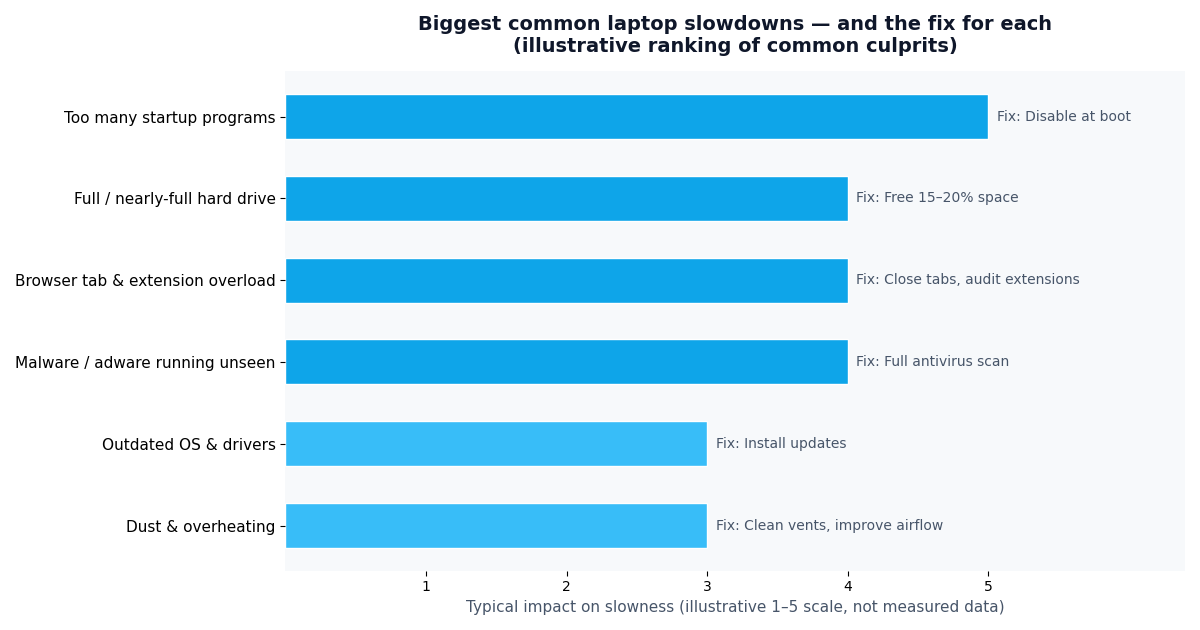
Keep your antivirus, cloud backup, and anything your employer requires. Everything else is fair game. This single change often cuts boot time dramatically — it’s the highest-impact free fix on this list, and it takes about three minutes.
2. Free Up Disk Space
A nearly-full drive slows everything down. The operating system needs breathing room for temporary files, updates, and virtual memory. As a rule of thumb, keep at least 15–20% of your drive free — on a 256 GB drive, that’s roughly 40–50 GB of headroom.
On Windows:
- Search for Disk Cleanup, select your main drive, and tick Temporary files, Recycle Bin, and Thumbnails.
- Go to Settings → System → Storage and turn on Storage Sense, which automatically clears temp files and empties the Recycle Bin on a schedule.
- Check Settings → Apps and uninstall programs you haven’t opened in months — especially preinstalled bloatware and duplicate utilities.
- Move large media libraries (photos, videos) to an external drive or cloud storage.
On Mac: use Apple menu → About This Mac → Storage → Manage to find space hogs, enable “Optimize Storage,” and empty the trash automatically.
Don’t forget the browser cache — in Chrome, Settings → Privacy → Clear browsing data → Cached images and files can free several gigabytes on its own. For a deeper clean, disk-cleaning tools like CCleaner can find junk Windows’ own tools miss, though the built-in utilities cover most cases.
3. Tame Your Browser Tabs and Extensions
Be honest: how many tabs are open right now? Each one consumes memory, and Chrome in particular is famous for it — a dozen heavy tabs can easily eat several gigabytes of RAM by themselves. On an 8 GB laptop, the browser alone can be the entire slowdown.
- Bookmark and close. If you’re “keeping it open to read later,” bookmark it into a “Read later” folder and close the tab. Future-you will thank present-you.
- Audit extensions. In Chrome, go to chrome://extensions and remove anything you don’t actively use. Each extension runs background code on every page.
- Use a tab suspender if you genuinely need many tabs — extensions that park inactive tabs free their memory until you click back.
- Try a lighter browser for secondary use. If Chrome is your memory hog, keep it for work apps and use a leaner browser for casual browsing.
This fix is free, instant, and embarrassingly effective. Many “slow laptop” complaints are really “forty-tab” complaints.
4. Update Windows/macOS and Your Drivers
Outdated software doesn’t just miss security patches — it misses performance fixes too. Both Microsoft and Apple regularly ship updates that improve efficiency, fix memory leaks, and optimize background processes.
On Windows: go to Settings → Windows Update → Check for updates, and also check Advanced options → Optional updates for driver updates — outdated graphics, network, and chipset drivers are a classic hidden cause of sluggishness. Microsoft’s support documentation has step-by-step guides if anything in the process looks unfamiliar.
On Mac: System Settings → General → Software Update. Mac drivers update with the OS, so there’s less to chase manually.
While you’re at it, update your most-used applications — browsers especially. An old browser version can be dramatically slower (and less secure) than the current one. If you’re weighing a new machine entirely, our Chromebook vs laptop comparison can help you decide what to buy next.
5. Scan for Malware and Adware
Malware doesn’t always announce itself with pop-ups. Cryptominers, adware, and sketchy “system optimizer” programs can quietly consume CPU and memory in the background, making a healthy laptop feel ancient.
- Run a full scan with Windows Security (built in — search “Windows Security” → Virus & threat protection → Scan options → Full scan). It’s genuinely good these days.
- Get a second opinion with the free scanner from Malwarebytes — it catches adware and potentially unwanted programs that standard antivirus sometimes ignores.
- On Mac, malware is rarer but not impossible; the same Malwarebytes free scan works on macOS.
- Uninstall anything suspicious you find in your programs list — especially “PC optimizers,” toolbars, or apps you don’t remember installing.
A related safety note: a lot of malware arrives through deceptive emails. Learning how to spot a phishing email protects both your data and your laptop’s performance.
6. Adjust Visual Effects and Power Settings
Windows ships with animations, transparency, and shadows that look nice on new hardware but tax older machines. Trimming them is a quick win.
Visual effects: search the Start menu for “Adjust the appearance and performance of Windows,” and choose Adjust for best performance — or pick Custom and keep just “Smooth edges of screen fonts” and “Show thumbnails instead of icons” so things don’t look too stark.
Power plan: go to Settings → System → Power & battery → Power mode and choose Best performance when plugged in. The default Balanced plan throttles your CPU to save battery, which feels like slowness on demanding tasks. (On battery, switch back to Balanced — full performance drains the battery fast.)
These two tweaks won’t transform a dying machine, but on a mid-range laptop they noticeably sharpen responsiveness — snappier window switching, faster menu animations, less input lag.
7. Clean Out Dust and Fix Overheating
Here’s a cause most guides skip: heat. When a laptop overheats, the CPU deliberately slows itself down to avoid damage — a process called thermal throttling. A three-year-old laptop full of dust can be thermally throttling during basic tasks, feeling far slower than its specs suggest.
Signs of heat problems: fans roaring during light use, the chassis uncomfortably hot, sudden slowdowns that ease after the machine cools.
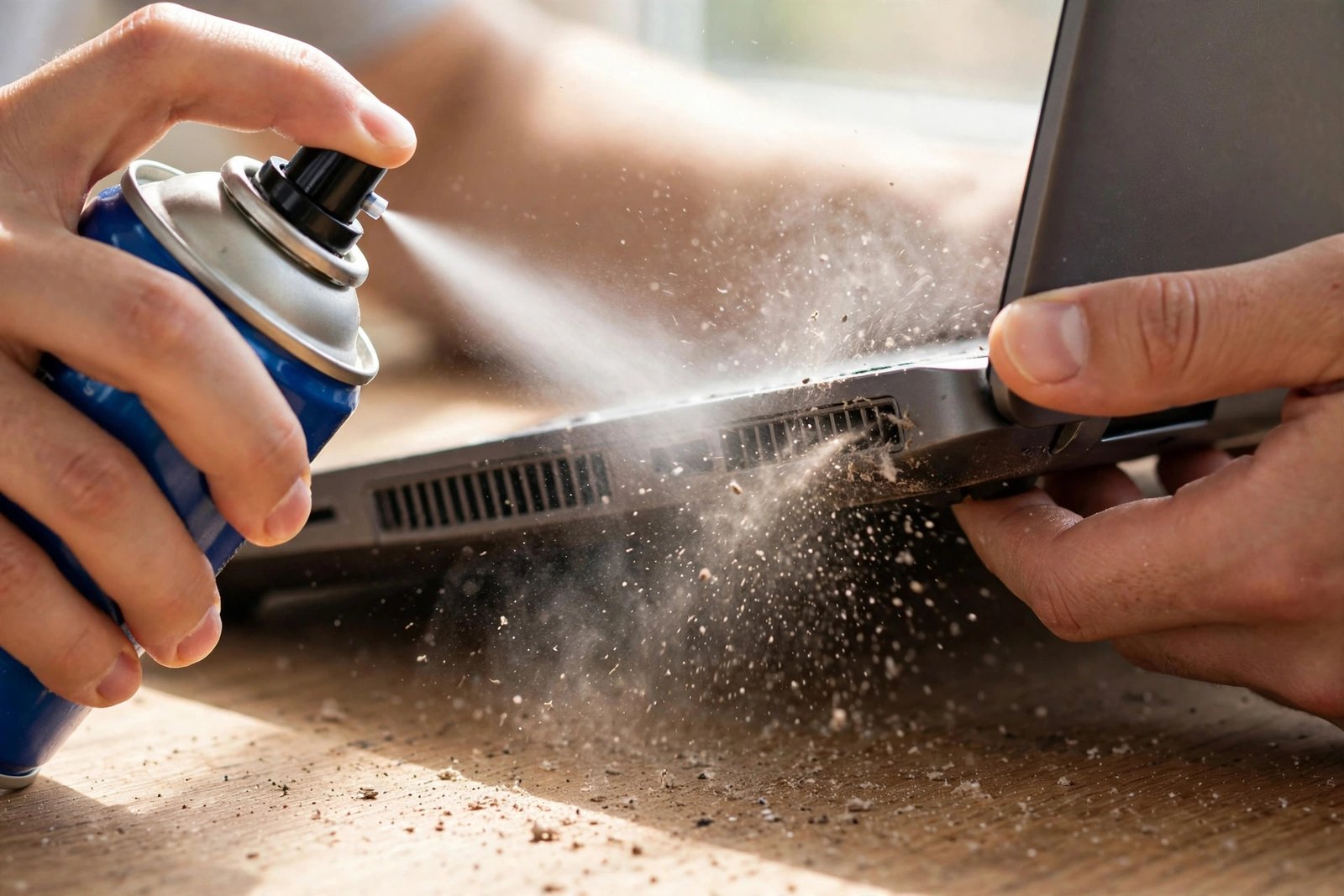
- Blow out the vents with short bursts of compressed air (machine off and unplugged). Hold fans still with a finger so they don’t spin wildly.
- Use it on hard, flat surfaces. Beds and couches block intake vents. A simple laptop stand improves airflow dramatically.
- Check fan behavior — if a fan never spins or makes grinding noises, it may need replacement, a cheap repair at most shops.
- Reapply thermal paste on older machines if you’re comfortable opening the chassis (or have a shop do it). Dried-out paste is a common cause of chronic overheating in 4+ year-old laptops.
8. Upgrade to an SSD — The Biggest Bang for Your Buck
If your laptop still has a mechanical hard drive (HDD), this is the upgrade. Swapping an HDD for a solid-state drive is the single most transformative thing you can do to an old laptop: boot times often drop from minutes to seconds, apps launch instantly, and the whole machine feels a generation newer.
- Check what you have: on Windows, open Task Manager → Performance tab → select your drive; it will say HDD or SSD.
- A 500 GB SATA SSD is the sweet spot for most older laptops — plenty of space, and SATA drives fit machines from the last decade.
- Cloning is easy: free tools can copy your entire system to the new drive, so there’s no reinstalling Windows or losing files.
- Check compatibility first — some thin ultrabooks have soldered storage that can’t be upgraded. Upgrade guides from memory makers like Crucial let you look up your exact model.
This is the one fix on the list that costs real money, but it’s also the one with the most dramatic payoff. A $50–$80 SSD can add years to a laptop’s useful life. (Prices vary by capacity and region — check current listings before buying.)
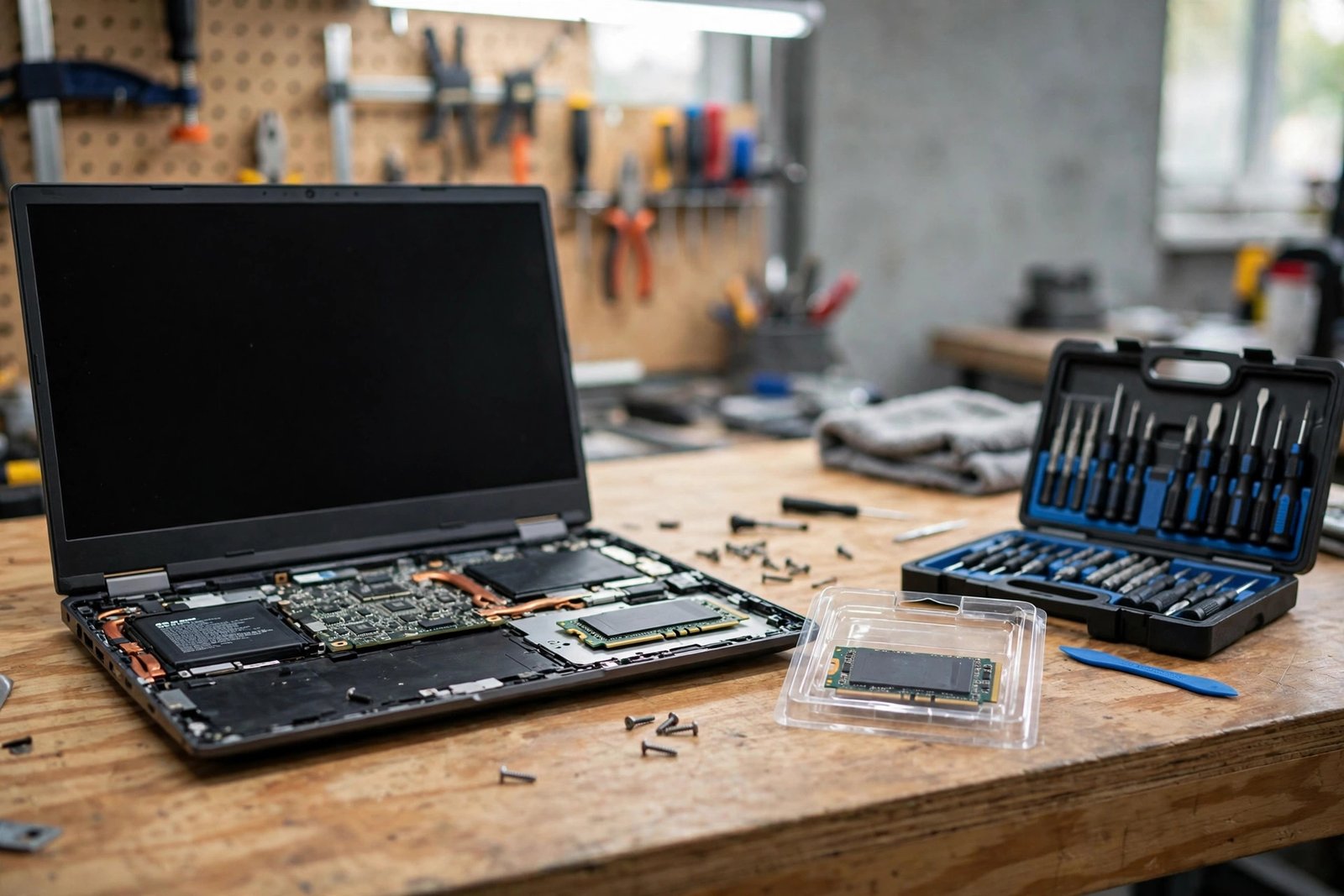
9. Add More RAM
If Task Manager consistently shows memory above 85% during your normal workload — and you’ve already trimmed startup apps and tabs — you may genuinely need more RAM. This is common on laptops that shipped with 4 GB (tight for modern Windows) or 8 GB (tight for heavy multitasking, photo/video work, or dozens of tabs).
- Check your current RAM: Task Manager → Performance → Memory shows total RAM and how many slots are used.
- 16 GB is the comfortable standard for general use in 2026; 8 GB is workable if you’re disciplined about tabs and background apps.
- Verify upgradability: many thin-and-light laptops have soldered RAM that can’t be changed. Check your model’s specs before buying anything.
- Match your existing RAM (same speed/type) for best compatibility — the Crucial lookup tool above covers this too.
RAM helps most with multitasking smoothness — less stutter when switching apps, more tabs without slowdown. It won’t fix a slow hard drive or an overheating CPU, so diagnose first (step 1) before spending.
10. The Nuclear Option: A Clean Reinstall
If you’ve tried everything and the laptop is still sluggish, years of accumulated cruft — leftover drivers, conflicting software, registry rot — may be beyond targeted fixes. A clean OS reinstall wipes the slate completely.
On Windows: Settings → System → Recovery → Reset this PC, choosing “Remove everything” and a cloud download for the freshest files. Back up your files first — this erases the drive.
On Mac: System Settings → General → Transfer or Reset → Erase All Content and Settings (Apple silicon), again after a full backup.
Reinstall only what you actually use, and you’ll be amazed how fast the machine feels — it’s the closest thing to a new laptop that costs nothing. Budget an afternoon: the reinstall is quick, but reinstalling apps and restoring files takes time.
Fix Difficulty and Cost Comparison
| Fix | Difficulty | Cost | Typical impact |
|---|---|---|---|
| Disable startup programs | Easy | Free | Faster boot, more free memory |
| Free up disk space | Easy | Free | Smoother overall performance |
| Tame browser tabs & extensions | Easy | Free | Big memory savings |
| Update OS & drivers | Easy | Free | Stability + efficiency gains |
| Malware scan | Easy | Free | Removes hidden resource hogs |
| Adjust visual effects & power plan | Easy | Free | Snappier responsiveness |
| Clean dust & fix overheating | Medium | Free (compressed air) | Stops thermal throttling |
| Upgrade to SSD | Medium | Hardware purchase | Transformative speed boost |
| Add more RAM | Medium | Hardware purchase | Smoother multitasking |
| Clean OS reinstall | Medium | Free | Like-new performance |
Frequently Asked Questions
Why is my laptop so slow all of a sudden?
Sudden slowdowns are usually caused by a specific event: a Windows update installing in the background, a new program launching at startup, malware infection, or a drive that’s just filled past 90%. Check Task Manager first — sort by CPU and Disk to find the culprit.
Will more RAM speed up my laptop?
Only if you’re actually running out of memory. Check Task Manager’s Memory tab during normal use: if it’s consistently above 85%, more RAM will help multitasking. If memory usage is low, your bottleneck is elsewhere — likely the hard drive or too many startup programs.
Is it worth upgrading an old laptop or should I buy a new one?
An SSD upgrade plus a RAM bump can make a 4–6 year-old laptop feel new for a fraction of replacement cost. Consider replacing instead if the CPU itself is very old, the battery is dead, the screen or keyboard is failing, or repair costs approach half the price of a new machine.
Does antivirus software slow down a laptop?
Heavy third-party antivirus suites can, especially during scheduled scans. Windows’ built-in Windows Security is lightweight and sufficient for most users — running two full antivirus suites at once is a common, avoidable slowdown.
How often should I restart my laptop?
Restart at least once a week. Restarts clear memory leaks, finish pending updates, and reset background processes that accumulate cruft over days of sleep/wake cycles. If your laptop has been “on” for three weeks straight, a restart alone may fix the slowness.
Can dust really make my laptop slower?
Yes. Dust-clogged vents cause overheating, and overheating triggers thermal throttling — the CPU deliberately reducing its speed to cool down. If your fans scream during light tasks and performance dips when the machine is hot, dust is a prime suspect.
How to Speed Up a Slow Laptop: Your Action Plan
Knowing how to speed up a slow laptop mostly comes down to working in the right order: diagnose first, apply the free fixes (startup cleanup, disk space, tabs, updates, malware scan), address heat, and only then consider hardware. Most laptops respond dramatically to the free tier alone — and for machines still on spinning hard drives, an SSD upgrade remains the best value in all of computing.
Start with Task Manager today. In fifteen minutes, you’ll know exactly what’s wrong — and most of the time, you’ll know exactly how to fix it.




[…] antivirus/anti-malware software — and if your machine has been acting strangely, our guide on how to speed up a slow laptop covers cleanup steps that overlap with post-malware […]
[…] sluggish overall, remember slow WiFi isn’t the only culprit — there are separate steps to speed up a slow laptop that can compound the […]
[…] once your data is safe, it’s also much easier to troubleshoot performance problems — like speeding up a slow laptop without worrying about losing anything along the […]