
Learning how to make your iPhone battery last longer has almost nothing to do with the size of the battery Apple put in your phone — and almost everything to do with a handful of settings that quietly sip power all day.
Most iPhones don’t die at 4 p.m. because the battery is defective. They die because the display is blazing at full brightness, a dozen apps are refreshing themselves in the background, and the cellular radio is straining to hold onto a weak signal.
The good news: every fix in this guide is already built into iOS. Nothing to buy, no sketchy “battery saver” apps to install, and each change takes under a minute. Work through all twelve and you’ll know exactly how to make your iPhone battery last longer by tomorrow evening.
Start with the screen: your biggest battery drain
The display is the single largest power consumer on any iPhone — bigger than the processor, bigger than the cellular radio. It’s no coincidence that Apple’s own Low Power Mode reduces screen brightness and limits the refresh rate. Tame the screen first — it’s the single biggest answer to how to make your iPhone battery last longer — and everything else is a bonus.

1. Turn down the brightness and switch on Auto-Brightness
Many of us leave the brightness slider cranked near maximum out of habit. Drop it to the lowest level that’s still comfortable for your eyes — indoors, that’s usually around 40–50%. Then make sure Auto-Brightness is on so iOS dims the screen automatically in dark rooms instead of blasting your eyes (and your battery). You’ll find it at Settings > Accessibility > Display & Text Size > Auto-Brightness.
This one change alone can be the difference between charging at lunch and charging at bedtime, especially if you spend a lot of time scrolling in bright rooms.
2. Shorten Auto-Lock to 30 seconds or 1 minute
Every minute your screen stays on while the phone sits untouched on a desk is pure waste. Set Settings > Display & Brightness > Auto-Lock to 1 minute — or 30 seconds if you don’t mind tapping the screen awake a little more often. Note that Low Power Mode forces Auto-Lock to 30 seconds, which tells you how much Apple thinks this matters.
3. Use Dark Mode if your iPhone has an OLED display
On iPhones with OLED screens (every flagship since the iPhone X, including all Pro models), black pixels are effectively switched off — they draw far less power than white ones. Flip on Dark Mode at Settings > Display & Brightness > Dark and pair it with a dark wallpaper. The savings are modest per hour, but across a full day of screen time they add up, and your eyes will thank you at night too.
How to make your iPhone battery last longer by stopping background drain
Your iPhone does a remarkable amount of work when you’re not looking at it — fetching email, refreshing apps, tracking your location. Some of that work is useful. Most of it isn’t. Trimming it is the fastest route to how to make your iPhone battery last longer. Here’s how to keep the useful parts and cut the rest.
4. Limit Background App Refresh
Background App Refresh lets apps update their content while you’re not using them — so your news app is fresh when you open it. The catch: every refresh wakes the processor and sometimes the radio, and dozens of apps doing it adds up. Go to Settings > General > Background App Refresh and turn it off entirely, or — the smarter middle ground — leave it on but disable it app by app for everything that doesn’t need to be fresh (games, shopping apps, utilities you open once a month).
5. Stop force-closing your apps
This one surprises people. Swiping apps away in the app switcher does not save battery — it can actually cost you battery. When you push an app into the background, iOS freezes it in a suspended state that uses effectively no power. Force-quitting purges it from memory, so the next time you open it the phone has to reload everything from scratch, which burns more energy than resuming a frozen app.
Apple’s software chief Craig Federighi was once emailed to ask whether quitting apps saves battery, and his entire reply was “no and no” — as Digital Trends reported. Apple’s own guidance says to force-close an app only when it’s unresponsive. Leave the app switcher alone.
6. Trim Location Services
GPS is one of the hungriest sensors in your phone. Open Settings > Privacy & Security > Location Services and scroll through the list. Any app set to “Always” that doesn’t genuinely need your location around the clock — looking at you, shopping and social apps — should be switched to “While Using the App” or “Never.” A quick rule: if an app’s core job isn’t maps, navigation, or finding nearby things, it probably doesn’t need your location at all.
Connectivity tweaks that quietly add hours
Your iPhone’s radios — cellular, Wi-Fi, Bluetooth — are always negotiating with the world. In good conditions they’re efficient. In bad conditions they work overtime — and managing them is an underrated part of how to make your iPhone battery last longer.
7. Prefer Wi-Fi over cellular, and calm 5G hunting
Cellular data, especially 5G, uses noticeably more power than Wi-Fi. Worse, when your signal is weak, the radio boosts its power trying to stay connected, which drains the battery fast. Two fixes: first, join trusted Wi-Fi networks whenever you’re stationary — at home, at work, at the café — and if your home Wi-Fi is patchy in some rooms, it’s worth taking an afternoon to improve your Wi-Fi signal at home so your phone isn’t constantly falling back to cellular.
Second, if you live or commute through areas with patchy 5G, your phone wastes energy hunting for a signal that keeps dropping. Switching to LTE in Settings > Cellular > Cellular Data Options > Voice & Data can actually extend your battery on those days, with barely any difference in real-world speed for browsing and messaging.
8. Switch Mail from Push to Fetch
Push email keeps a constant connection open so messages arrive instantly. That’s convenient, but it means your phone never fully rests. Unless you truly need email the second it lands, go to Settings > Mail > Accounts > Fetch New Data, turn off Push, and set Fetch to every 30 minutes or hourly. You’ll still get everything — just in batches. (It’s telling that Low Power Mode turns email fetch off entirely.)
Use Low Power Mode before you’re desperate
Most people treat Low Power Mode as a panic button at 10%. It’s far more useful as a planning tool: think of it as the shortcut version of how to make your iPhone battery last longer on days when every percent counts.
9. Turn it on early on long days
If you know you’ll be away from a charger for 12+ hours — travel days, long shifts, festivals — switch on Low Power Mode at 60% or 70%, not at 20%. Enable it at Settings > Battery > Low Power Mode, or add it to Control Center for one-tap access (Settings > Control Center). You’ll know it’s active when the battery icon turns yellow.
According to Apple’s support page, the mode dials back 5G, shortens Auto-Lock to 30 seconds, reduces display brightness, caps ProMotion displays at 60Hz, pauses iCloud Photos syncing, and turns off automatic downloads, email fetch, and Background App Refresh. Everything resumes automatically once you charge past 80%.
10. Try Adaptive Power on iPhone 15 Pro and later
Newer iPhones have a gentler option: Adaptive Power (at Settings > Battery > Power Mode) uses on-device intelligence to predict when you’ll need extra battery and makes small adjustments — slightly lower brightness, calmer background activity — only when it matters. It takes about a week to learn your routine, and unlike Low Power Mode, you can leave it on all the time without noticing much difference.
Charging habits that protect next year’s battery
Everything so far extends battery life — how long a charge lasts today. These last two tips protect battery lifespan — how much capacity your battery still has a year or two from now. These habits are the long-game answer to how to make your iPhone battery last longer — not just today, but next year too.
11. Set a charge limit or use Optimized Battery Charging
Lithium-ion batteries age faster when they sit at 100% charge, because high voltage accelerates chemical aging inside the cells. On iPhone 15 and later, Apple lets you cap daily charging at Settings > Battery > Charging, choosing a charge limit between 80% and 100% in 5% steps. If you usually end the day with charge to spare, an 80% or 85% limit noticeably slows long-term wear.
On older iPhones, leave Optimized Battery Charging switched on (Settings > Battery > Battery Health & Charging). It learns your routine — it needs about two weeks — and holds the battery at 80% overnight, finishing the last 20% just before you normally wake up.
12. Check Battery Health and keep the phone cool
Open Settings > Battery > Battery Health & Charging and look at Maximum Capacity. A new iPhone reads 100%; as chemical aging accumulates, that number falls. Once it drops toward 80%, Apple considers the battery near the end of its designed lifespan — at that point no settings tweak will restore lost capacity, and a battery replacement is the honest fix. (Before booking one, make sure you back up your phone.)
Heat is the other great ager of batteries. Avoid leaving your iPhone on a car dashboard in summer, and take thick cases off while fast-charging if the phone feels warm. Apple’s battery and performance guide explains how temperature and charging patterns feed into chemical aging — worth a read if you’re curious about the science. Think of it as the same maintenance mindset that keeps a laptop healthy; our guide to speed up a slow laptop applies the same philosophy to your computer.
Which settings save the most battery? A visual ranking
Not all twelve tips are equal. Based on what Apple itself dials back in Low Power Mode — and the consensus of battery-life testing — the screen and the cellular radio dominate, while things like visual effects are rounding errors. Here’s a directional ranking of the biggest culprits, so you can see at a glance how to make your iPhone battery last longer with the least effort:
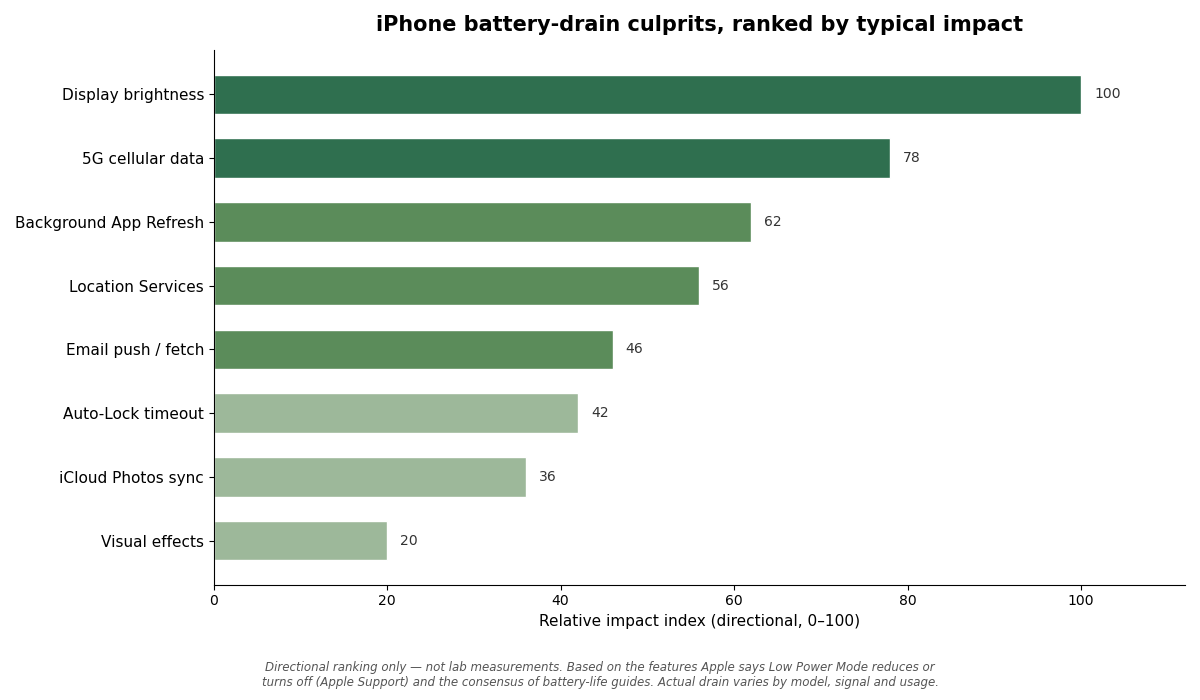
A quick caveat: these bars are directional estimates, not lab measurements. Real drain depends on your model, your signal strength, and how you use the phone — a navigation-heavy day looks nothing like a reading-in-bed day. But the order is consistent: if you only change three things, make them brightness, background refresh, and your relationship with 5G.
Frequently asked questions
Does force-closing apps save iPhone battery life?
No — it usually does the opposite. iOS freezes background apps in a suspended state that uses effectively no power, and relaunching a force-quit app from scratch costs more energy than resuming it. Apple advises force-closing only when an app is unresponsive.
What does Low Power Mode do and how much does it help?
It reduces 5G usage, shortens Auto-Lock to 30 seconds, dims the display, caps ProMotion refresh rates at 60Hz, pauses iCloud Photos syncing, and turns off automatic downloads, email fetch, and Background App Refresh. How much it helps depends on your usage, but on a heavy day it can add a couple of hours; it turns off automatically once you charge past 80%. Used early, it’s the simplest single trick for how to make your iPhone battery last longer on a long day.
Is it bad to charge my iPhone overnight?
Not really, thanks to modern charging management. Optimized Battery Charging (or a manual charge limit on iPhone 15 and later) prevents the battery from sitting at 100% all night. What actually wears batteries is heat and spending long periods fully charged — so charge overnight without guilt, but keep the phone somewhere cool and ventilated, not under a pillow.
Should I keep my iPhone charged between 20% and 80%?
Staying in the middle of the range does reduce chemical aging, which is exactly why Apple offers charge limits. But don’t turn it into a source of stress: if you need a full charge for a long day, take the full charge. A battery that’s used comfortably beats a battery you babysit anxiously.
Does 5G use more battery than Wi-Fi?
Yes — cellular data draws more power than Wi-Fi in general, and 5G in particular, especially when the signal is weak and the radio has to work harder to hold it. That’s why Low Power Mode reduces 5G usage, and why joining Wi-Fi whenever you’re stationary is one of the simplest battery wins available.
The 5-minute battery audit
If you take nothing else from this guide, do this right now: drop your brightness and enable Auto-Brightness, set Auto-Lock to 1 minute, turn off Background App Refresh for apps you rarely open, switch location-hungry apps from “Always” to “While Using,” and put Mail on Fetch instead of Push. Five minutes of tapping, and your iPhone will comfortably outlast the day it used to die in — and the battery will still be healthier a year from now. That is how to make your iPhone battery last longer: twelve small settings, one five-minute audit.