

Choosing between a Chromebook vs laptop for students is one of those decisions that feels small until you’re the one carrying the wrong machine across campus for four years. Get it right and you have a light, affordable workhorse that handles every essay, spreadsheet, and video call without complaint. Get it wrong and you’re stuck with a device that can’t run the software your major requires — or you overspent by hundreds of dollars on power you’ll never use.
The good news: this isn’t really a specs contest. It’s a fit question. A $300 Chromebook is genuinely the best computer for some students, and genuinely the wrong one for others. This guide gives you a clear decision framework — by major, by use case, and by budget — plus realistic 2026 picks under $500, so you (or your parents) can buy with confidence.
Chromebook vs Laptop for Students: The Quick Verdict
If you just want the answer, here it is:
- Buy a Chromebook if most of your work happens in a browser: essays, research, Google Docs or Microsoft 365 on the web, slides, email, video classes, and streaming. This covers a huge share of high school students and many college majors in the humanities, social sciences, education, and business.
- Buy a Windows laptop if your coursework needs real desktop software: programming IDEs, CAD, Adobe Creative Cloud, statistics packages like SPSS or SAS, virtualization, or PC gaming on the side. This covers computer science, engineering, architecture, design, data science, and film/media production.
- Not sure yet? A budget Windows laptop is the safer all-rounder. It runs everything a Chromebook can (through the browser) plus the desktop apps a Chromebook can’t.
Price is the other big factor. Chromebooks typically start lower and cluster in the budget range, while capable Windows laptops usually cost a bit more for similar portability. For a detailed side-by-side, the Tom’s Guide Chromebook vs laptop comparison is a solid second opinion worth skimming.

How Chromebooks and Windows Laptops Actually Differ
The difference isn’t really about the hardware — it’s about the software philosophy. Understanding that makes the whole chromebook vs laptop for students decision click.
Operating system and apps
A Chromebook runs ChromeOS, Google’s lightweight operating system built around the browser and cloud apps. Your “programs” are mostly websites and web apps: Google Docs, Sheets, Slides, Gmail, Canvas, Blackboard, Zoom in the browser. Most Chromebooks also run Android apps from the Google Play Store, which fills in gaps like note-taking apps, Spotify, and light photo editing. Google’s official Chromebook FAQ answers the common “is a Chromebook a real laptop?” questions straight from the source.
A Windows laptop runs Windows 11 — the full desktop OS. That means it can install virtually any traditional program: Microsoft Office desktop apps, Adobe Photoshop and Premiere Pro, AutoCAD, MATLAB, Python IDEs, Steam games, and thousands of niche academic tools. If a professor says “install this software for the course,” a Windows laptop can almost always do it. A Chromebook sometimes can’t.
Offline use and storage
Here’s a myth worth killing: modern Chromebooks are not useless without Wi-Fi. Google Docs, Sheets, and Slides all work offline once enabled, and Android apps like note-takers run locally too. That said, a Chromebook leans on the cloud more — many models ship with modest local storage (often 64–128 GB) because your files live in Google Drive. Windows laptops typically offer more local storage and run full offline programs without workarounds.
For a plain-English explainer of what ChromeOS can and can’t do, Digital Trends’ guide to what a Chromebook is covers the essentials well.
Chromebook vs Windows Laptop: Side-by-Side Comparison
| Feature | Chromebook | Budget Windows Laptop |
|---|---|---|
| Operating system | ChromeOS (browser + cloud first) | Windows 11 (full desktop OS) |
| Software compatibility | Web apps, Android apps, some Linux tools; no traditional desktop programs | Runs virtually all desktop software, including specialized academic tools |
| Typical price (2026 budget models) | Often found from roughly $200–$500 | Often found from roughly $350–$600 for decent student models |
| Battery life | Typically excellent — often 10+ hours on budget models | Varies widely — typically around 6–9 hours on budget models |
| Weight | Typically light, often under 3 lbs | Typically 3–4 lbs at budget prices |
| Security & maintenance | Very low maintenance; automatic updates, sandboxed, hard to infect | More upkeep: antivirus awareness, driver and feature updates |
| Best for | Writing, research, web-based coursework, younger students | STEM majors, creators, anyone needing desktop software or gaming |
Note: prices and specs are typical ranges for 2026 budget models, not quotes for any specific device — always check current retailer listings.
Which Majors Are Fine With a Chromebook?
If your coursework lives in documents, slides, readings, and a learning platform, a Chromebook will handle it happily. Majors where students typically thrive on a Chromebook include:
- Education — lesson plans, Google Classroom, research papers. Chromebooks are already the standard device in many K-12 schools, so the workflow carries straight into college education programs.
- English, history, communications, and other humanities — essays, readings (often PDFs or e-books), discussion boards, and presentations are all browser-native work.
- Psychology, sociology, and social sciences — as long as your stats course uses a web-based tool or SPSS alternatives that run in the browser, you’re fine. (Double-check the syllabus if a specific desktop stats package is required.)
- Business and marketing (general track) — spreadsheets, slide decks, case studies, and collaboration tools all run beautifully in the cloud. Many business students never touch software a Chromebook can’t handle.
- Nursing and allied health (classroom portion) — coursework, drug-reference apps (many are Android apps), and online testing platforms generally work well.
- High school students — for most high school workloads, a Chromebook isn’t just adequate, it’s ideal: cheap, tough, long battery life, and hard to break with malware.
The pattern is simple: if your “software list” is basically a browser plus Google Workspace or Microsoft 365 on the web, you’re paying for portability and battery life — and that’s exactly where Chromebooks shine.
Which Majors Need a Windows Laptop?
Some fields genuinely require desktop software, and this is where buying the wrong machine hurts. If any of these describe you, get the Windows laptop:
- Computer science and software engineering — you’ll run IDEs (VS Code, IntelliJ, PyCharm), compilers, Docker, virtual machines, and Git tooling. Some of this is possible on a Chromebook via Linux mode, but it’s a workaround, not a workflow — and your professors won’t troubleshoot it for you.
- Engineering (mechanical, electrical, civil) — CAD software (SolidWorks, AutoCAD), MATLAB, LabVIEW, and circuit simulators are Windows-first desktop programs. Non-negotiable.
- Architecture — Rhino, Revit, AutoCAD, and Adobe Suite. These need real GPUs and desktop operating systems.
- Graphic design, film, and media production — Photoshop, Illustrator, Premiere Pro, After Effects, DaVinci Resolve. The Android versions of creative apps are toys compared to the desktop originals.
- Data science and statistics-heavy programs — if your courses require SPSS, SAS, Stata, or RStudio desktop with large datasets, a Windows machine (with enough RAM) is the safe choice.
- Gamers — if the laptop doubles as your gaming rig, Windows is the only real option. Chromebooks handle cloud gaming and Android games, but not a Steam library.
When in doubt, email your department or check the program’s “technology requirements” page before freshman year. Many universities publish exactly which software each major requires — a five-minute check that can save a $400 mistake.
2026 Model Picks Under $500: What to Actually Buy
Let’s talk real machines. Prices shift with sales and back-to-school deals, so treat these as categories to shop rather than exact recommendations — but they represent the sweet spot for students right now.
Best Chromebook picks for students
- Budget pick (often under $300): An 11.6-inch or 14-inch Chromebook from Acer or Lenovo with 4 GB of RAM. Perfect for younger students or as a secondary note-taking device. Look for a touchscreen if you’ll annotate PDFs.
- Best value (typically $300–$400): The Lenovo Chromebook Duet series and similar 2-in-1 convertibles. Reviewers have consistently praised these for punching above their price — detachable or flip-around designs, decent displays, and all-day battery. Ideal for humanities and business students who want tablet flexibility for reading.
- Step-up pick (typically $400–$500): A “Chromebook Plus” model (Acer Chromebook Spin, ASUS Chromebook Plus, or similar) with 8 GB of RAM and a better display. The Plus certification means snappier performance and a nicer screen — worth it if this is your only computer for four years.
Best budget Windows laptop picks for students
- Budget pick (often under $400): Entry-level 15.6-inch laptops from Lenovo, HP, or Acer with a Ryzen 3 / Intel Core i3-class chip and 8 GB of RAM. Fine for Office, browsing, and light multitasking. Avoid 4 GB RAM Windows machines — they’ll feel slow within a year.
- Best value (typically $400–$500): This is the sweet spot: Ryzen 5 or Intel Core i5-class processors, 8–16 GB RAM, 256–512 GB SSD. Machines in this bracket handle programming coursework, Photoshop basics, and heavy multitasking without drama. Back-to-school sales regularly push solid models into this range.
A general laptop buying guide from a major retailer is handy for comparing current models side by side once you’ve decided which camp you’re in.
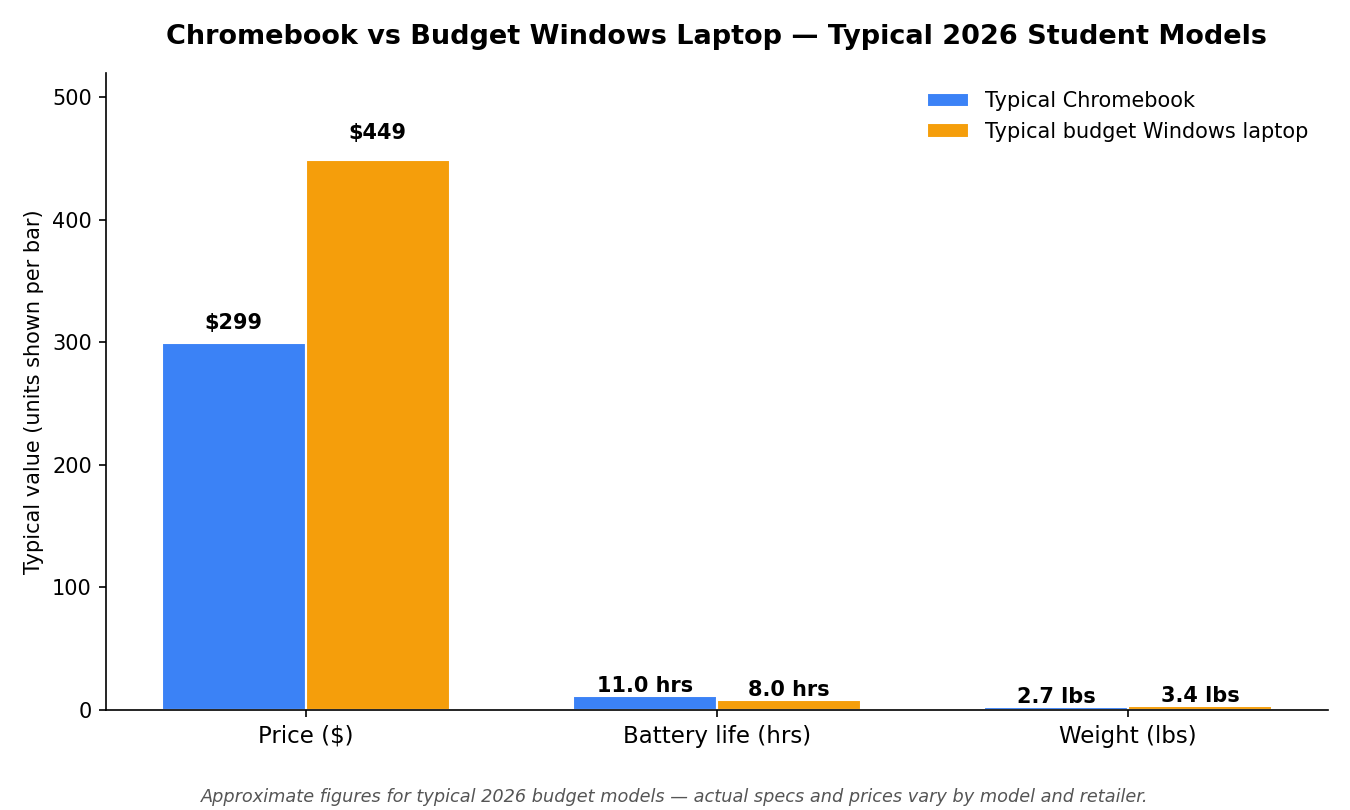
The chart above tells the story at a glance: Chromebooks typically win on price, battery life, and weight — the three things that matter most when you’re hauling a machine across campus all day. Windows laptops cost more and weigh a bit more, but buy you total software freedom. Neither is “better” — they optimize for different students.
Battery Life, Weight, and Real Campus Life
Specs sheets don’t capture what it’s like to live with a laptop for a semester. A few practical realities:
- Battery life matters more than processor speed for most students. Lecture halls don’t have outlets at every seat. A Chromebook that reliably lasts a full day of classes without hunting for a plug is a genuine quality-of-life upgrade.
- Weight adds up. The difference between 2.6 lbs and 3.8 lbs sounds trivial until it’s in your backpack with three textbooks for eight hours. If you’ll commute or walk a big campus, lighter wins.
- Durability counts. Budget laptops get dropped, shoved in bags, and borrowed by roommates. Many Chromebooks are built with classroom abuse in mind (spill-resistant keyboards, reinforced corners). Budget Windows laptops vary — read reviews specifically about build quality.
- Repairs and lifespan. Chromebooks update themselves automatically for years, and there’s almost nothing to maintain. Windows laptops need a bit more care but are often easier to repair and upgrade (RAM, storage) down the line.

Software Gotchas to Check Before You Buy
Before you click “buy,” run through this checklist. It takes ten minutes and prevents the most common regret:
- Check your school’s software list. Many programs publish required software per major. If anything on that list is Windows/Mac-only desktop software, the Chromebook is out.
- Check your testing platform. Some online exam proctoring tools (lockdown browsers) have limited or no Chromebook support. Your school’s IT page will say.
- Check your file compatibility. If a professor distributes niche file formats or expects you to submit in specific desktop-app formats, confirm the web versions handle them.
- Check your major’s trajectory, not just freshman year. A psychology major who’ll take advanced stats in junior year, or a business major eyeing a finance track with Excel modeling, may outgrow a Chromebook. Buy for the degree, not the semester.
- Check the return policy. Buy from a retailer with a generous return window. Two weeks of real coursework is the only review that matters.
A Simple Decision Framework
Still torn on the chromebook vs laptop for students question? Walk through these four questions in order:
- Does my major require desktop software? Yes → Windows laptop. No → continue.
- Is my total budget under $350? Yes → Chromebook (you’ll get a much better machine for the money). No → continue.
- Do I want one device for everything, including possible future needs? Yes → budget Windows laptop for flexibility. No → continue.
- Do I value battery life, light weight, and zero maintenance above all? Yes → Chromebook. You know what you need.
And remember the budget angle: whichever you choose, the machine is only part of budgeting for college expenses — accessories, software subscriptions, and a good backup drive add up too. Students watching every dollar often pair a Chromebook with the campus computer lab for the occasional heavy task, which is a perfectly valid strategy. Others earn money between classes with a small service business to fund a more powerful machine later — the laptop decision doesn’t have to be permanent.
Frequently Asked Questions
Can a Chromebook replace a laptop for college?
For many majors, yes — if your coursework is browser-based (essays, research, slides, online learning platforms), a Chromebook handles it completely. It can’t replace a laptop for majors requiring desktop software like CAD, Adobe Creative Cloud, or programming IDEs.
Do Chromebooks work without Wi-Fi?
Mostly, yes. Google Docs, Sheets, and Slides work offline once enabled, and Android apps run locally. But Chromebooks are designed cloud-first, so a constant connection gives the best experience. Download readings and enable offline mode before heading somewhere without Wi-Fi.
How long does a student Chromebook last?
A decent Chromebook easily lasts 3–4 years of student use — often longer, since ChromeOS stays fast on modest hardware and updates automatically. The battery is usually the first thing to degrade. Buying a model with 8 GB of RAM extends its useful life noticeably.
Is 4 GB of RAM enough on a student laptop?
On a Chromebook, 4 GB is workable for light use but 8 GB is the smarter buy if it’s your main machine. On a Windows laptop, treat 8 GB as the minimum — 4 GB Windows machines feel sluggish quickly with modern browsers and Office apps open together.
Should I buy a MacBook instead?
MacBooks are excellent machines, but they start well above the $500 budget this guide targets, and some niche academic Windows software doesn’t run on macOS either. If your budget stretches and your major is Mac-friendly (design, humanities, business), it’s worth considering — but it’s a different buying decision.
When is the best time to buy a student laptop?
Back-to-school sales (July–September) typically offer the deepest discounts, with a second wave around Black Friday. If you can wait for a sale, you can often step up a tier — say, from 4 GB to 8 GB of RAM — for the same money.
Conclusion
The Chromebook vs laptop debate for students was never about which is “better” — it’s about matching the machine to the major. Browser-based workloads and tight budgets point to a Chromebook: lighter, cheaper, longer-lasting on a charge, and refreshingly low-maintenance. Desktop software requirements, STEM and creative majors, and the desire for one do-everything device point to a Windows laptop.
Run the four-question framework, check your program’s software requirements, and buy for the degree rather than the semester. Do that, and whichever you choose, you’ll have the right tool for the next four years.




[…] slower (and less secure) than the current one. If you’re weighing a new machine entirely, our Chromebook vs laptop comparison can help you decide what to buy […]
[…] space for large photo libraries. For students or anyone on a tight budget — including folks choosing a laptop for students — a free local backup plus the free cloud tier is a reasonable starting […]