
Picture this: your phone slips out of your pocket on a busy street, or it just refuses to turn on one Monday morning. Years of photos, every conversation, your banking apps, your contacts — gone in an instant. It’s the kind of gut-punch moment nobody thinks will happen to them, right up until it does. That’s exactly why learning how to back up your phone is one of the highest-leverage tech habits you can build. It takes about five minutes to set up, and after that it runs itself. This guide walks you through backing up an iPhone and an Android phone step by step, compares the cloud storage plans worth paying for, and shows you how to make sure your backup actually works when you need it.
Why Backing Up Your Phone Matters More Than You Think
Your phone isn’t just a communication device anymore. It’s your photo album, your filing cabinet, your wallet, and your ID all rolled into one. Most people only discover the value of a backup the hard way — staring at a broken screen while a repair technician shrugs. A proper backup means a lost, stolen, or dead phone becomes an afternoon inconvenience instead of a catastrophe: you sign in on a new device, and everything — photos, messages, app logins, settings — flows back in.
There’s also a practical angle most guides skip. Backups protect you from software disasters too. A bad app update, a botched iOS or Android upgrade, or a factory reset to fix a misbehaving device all become stress-free when you know a fresh copy of everything is sitting in the cloud. Speaking of misbehaving devices, once your data is safe, it’s also much easier to troubleshoot performance problems — like speeding up a slow laptop without worrying about losing anything along the way.
What a Phone Backup Really Saves (And What It Doesn’t)
Before you set anything up, it’s worth knowing what actually gets saved. Phone backups are surprisingly thorough, but they’re not magic, and the details differ between iPhone and Android.
| What’s included | iCloud Backup (iPhone) | Google One Backup (Android) |
|---|---|---|
| App data | Yes — settings, documents, and data for most apps | Yes — app data and settings for supported apps |
| Messages (SMS, MMS, iMessage) | Yes, including attachments | Yes — SMS and MMS history |
| Contacts, calendars, notes | Yes, synced to iCloud continuously | Yes, synced to your Google account continuously |
| Call history | Included in the backup | Yes, explicitly included |
| Device settings & home screen layout | Yes | Yes, including wallpaper and widgets |
| Passwords | Yes — via iCloud Keychain (separate, always synced) | Yes — via Google’s password manager |
| Downloaded music/apps themselves | No — re-downloaded from the App Store on restore | No — apps reinstalled from Google Play on restore |
The biggest gap most people hit: photos. Both platforms sync them continuously outside the main device backup, so you need to make sure photo syncing is actually turned on — not just the device backup. If your photo library is bigger than your free cloud storage, the backup will fail or stall, which is the most common reason people think their phone “isn’t backing up.”
How to Back Up Your iPhone
Apple’s cloud backup is the easiest to set up and, honestly, the one most iPhone owners already have half-configured without realizing it. The free iCloud tier only includes 5 GB, though, and a modern iPhone backup almost always needs more.
Step 1: Turn on iCloud Backup
Open Settings, tap your name at the top, then tap iCloud and scroll to iCloud Backup. Toggle on “Back Up This iPhone.” Once it’s on, your phone backs up automatically whenever it’s locked, connected to Wi-Fi (or cellular, if you allow it), and charging. You can also tap Back Up Now to run one immediately. Apple’s own iCloud Backup guide walks through the same steps with screenshots.
Step 2: Check what’s using your storage
Go to Settings > [your name] > iCloud and look at the storage bar. If you’re bumping against the limit, tap Show All under “Apps Using iCloud” and switch off anything that doesn’t need to be in the cloud. Photos and full-device backups are the usual space hogs.
Step 3: Decide on a storage plan
Here’s the honest math: the free 5 GB covers almost nobody with a real photo library. Apple’s paid iCloud+ plans start at $0.99/month for 50 GB, $2.99/month for 200 GB, and $9.99/month for 2 TB, with 6 TB and 12 TB options above that. For a single iPhone with a moderate photo library, 50 GB is usually enough; families or 4K-video shooters should look at 200 GB or 2 TB, which can also be shared with up to five family members.
Step 4: Turn on Advanced Data Protection (optional but smart)
By default, Apple encrypts your iCloud data, but Apple itself holds some of the keys. Enabling Advanced Data Protection switches nearly all your iCloud data to end-to-end encryption, so only your devices can read it. Set a recovery contact first — if you forget your password and lose your devices, nobody, not even Apple, can get you back in.
How to Back Up Your Android Phone
Android’s backup story is split between Google’s built-in backup and Google Photos, and the settings path has changed a few times across Android versions. Here’s the current flow.
Step 1: Enable Google One backup
Open Settings and tap Google, then Backup (on some phones it’s under Settings > System > Backup). Toggle backup on and choose what to include: device data, photos & videos, or both. Google notes that a backup can take up to 24 hours to complete the first time — leave the phone charging on Wi-Fi overnight. The full walkthrough is in Google’s Android backup instructions.
Step 2: Confirm Google Photos is syncing
Photos and videos are handled separately through Google Photos. Open the Google Photos app, tap your profile picture, go to Photos settings > Backup, and make sure it’s on. Also check the backup quality setting: original quality eats storage fast, while the compressed “storage saver” option shrinks files but saves a huge amount of space.
Step 3: Check your Google storage
Every Google account starts with 15 GB free, shared across Gmail, Drive, and Photos. Open the Google One app and look at the storage meter. If backups are failing, this is almost always why. The entry-level paid plan is 100 GB for $1.99/month — a detailed breakdown of all tiers is in Android Central’s Google One plans guide.
iCloud+ vs Google One: Which Cloud Storage Should You Pay For?
If you only own one type of phone, the answer is obvious — use the native option. It gets complicated for households with both iPhones and Androids, or if you’re deciding whether one ecosystem’s storage is simply a better deal.
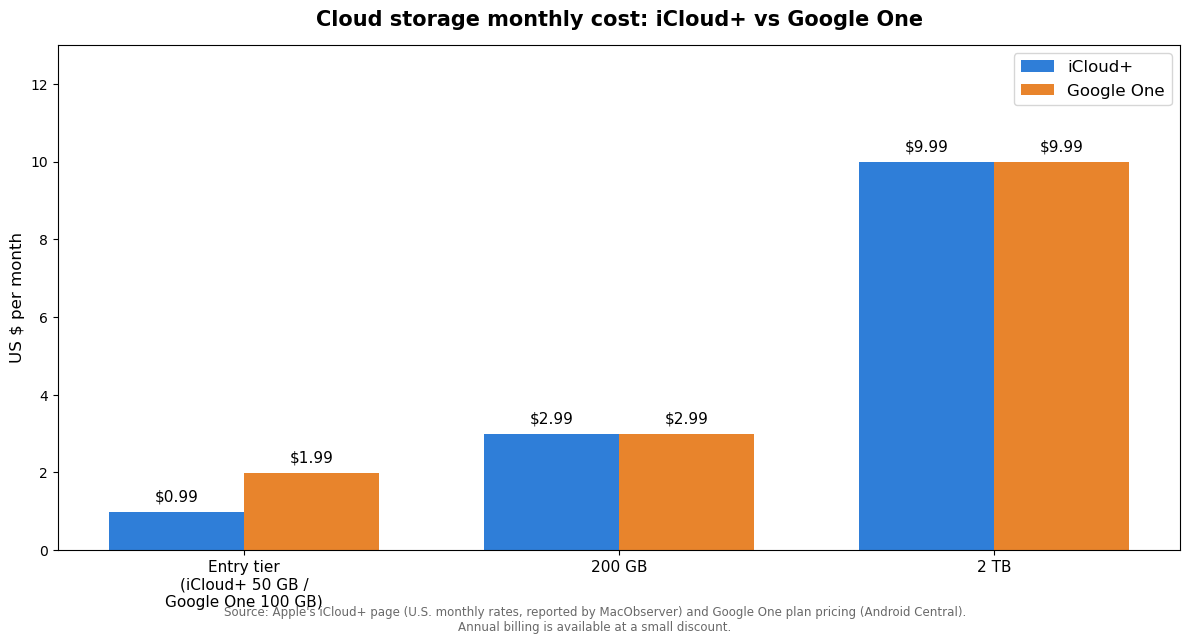
The chart above compares U.S. monthly rates for the main tiers. A few takeaways:
- At 200 GB and 2 TB, both cost exactly the same — $2.99 and $9.99 per month respectively. The pricing converges once you get past the entry tier.
- The entry tiers differ. iCloud+ starts at 50 GB for $0.99/month while Google One’s smallest paid plan is 100 GB for $1.99/month. If you need just a little extra room, Apple’s tier is cheaper — but note Google also gives you 15 GB free versus Apple’s 5 GB.
- Family sharing works on both. iCloud+ can be shared with up to five family members, and Google One plans can be shared with up to five people too. For a mixed household, one 200 GB or 2 TB plan of either kind covers everyone.
- Big-archiving tiers run up to 12 TB on iCloud+ ($59.99/month) and up to 30 TB on Google One ($149.99/month) — overkill for phone backups, but relevant if your cloud storage doubles as your family’s photo archive.
Bottom line: don’t overthink this. Use your phone’s native cloud, buy the smallest tier that fits your data, and spend the saved decision-making energy on making sure the backup actually runs.
How to Back Up Your Phone for Free: Local Backups
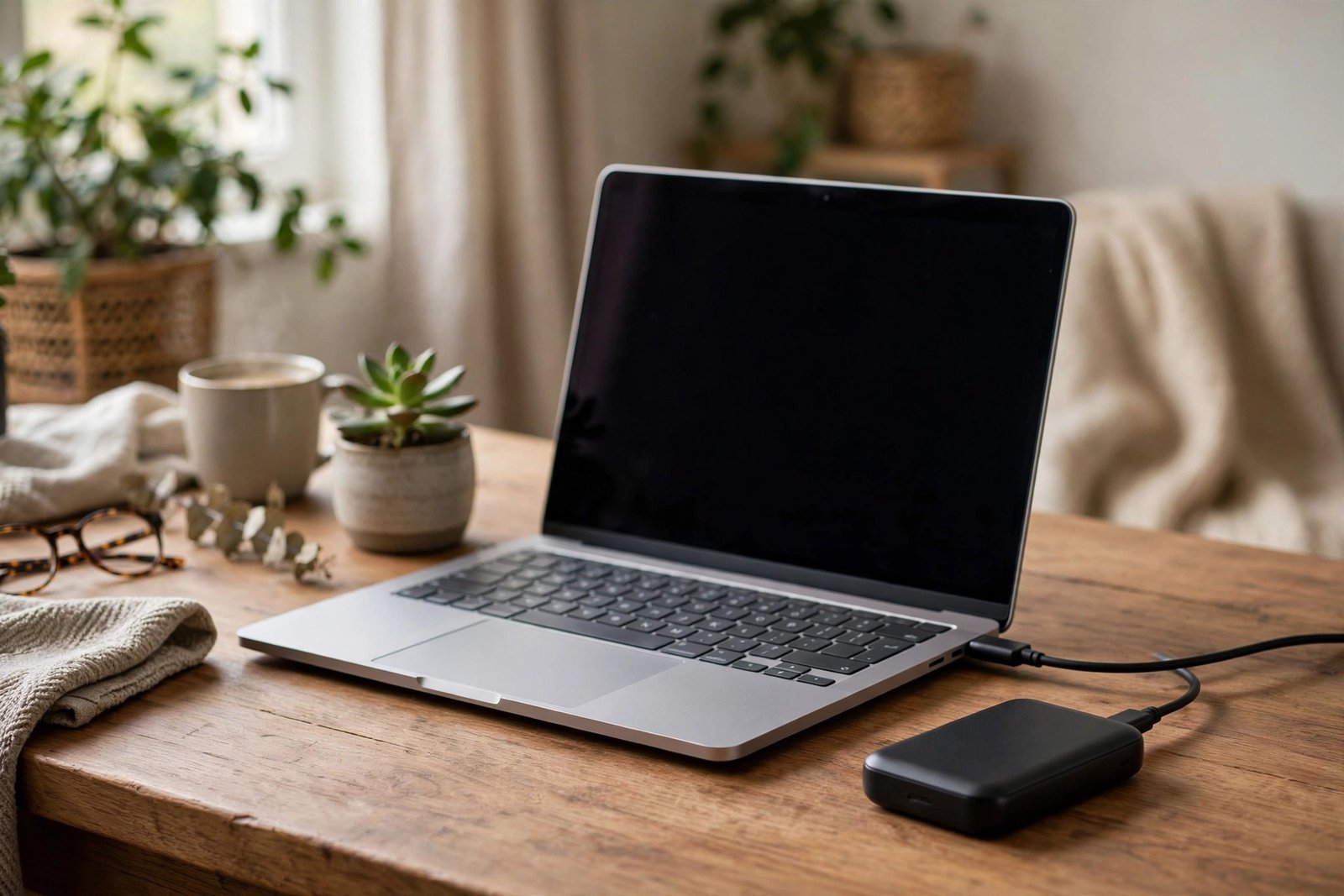
Cloud backups are convenient, but a local backup — a copy on your own computer or hard drive — gives you a second layer that doesn’t depend on the internet or a subscription. Security professionals call this redundancy, and it’s the core of the well-known 3-2-1 rule: three copies of your data, on two different media, with one off-site.
iPhone: back up to a Mac or PC
Plug your iPhone into your computer with a cable. On a Mac, open Finder, select your iPhone, and choose Back Up Now under the General tab. On Windows, use the Apple Devices app from the Microsoft Store. Tick “Encrypt local backup” — without it, sensitive data like passwords and health data won’t be included.
Android: copy files manually
Connect your phone to your computer with a USB cable, set the USB mode to “File Transfer,” and copy your DCIM (photos), Documents, and Download folders to a folder on the computer or an external drive. It’s manual and it won’t capture app data, but for your irreplaceable photos it’s a solid free fallback. Some manufacturers, like Samsung, also offer their own desktop backup tools.
How to Restore Your Phone From a Backup
A backup is only as good as its restore. On an iPhone, you’ll get the option to restore from an iCloud backup during the initial setup of a new or erased device — just sign in with your Apple ID and pick the most recent backup. On Android, the setup wizard offers to restore from your Google One backup; you’ll sign in, verify your old device’s screen lock PIN, and select what to restore.
One caution: restores take time, especially over Wi-Fi with large photo libraries. Let the phone sit on a charger overnight during the first restore rather than trying to use it immediately. Apps reinstall one by one in the background, which is normal.

Common Backup Mistakes to Avoid
- Assuming it’s working. Check the last-backup date once a month. On iPhone it’s under Settings > [your name] > iCloud > iCloud Backup; on Android it’s in the Google One app or Settings > Google > Backup.
- Running out of cloud space. A full iCloud or Google One means backups silently stop. Watch for the “storage full” warnings instead of dismissing them.
- Forgetting photos sync separately. Your device backup and your photo library backup are two different switches. Check both.
- No encryption on local backups. An unencrypted local backup misses passwords and health data — and anyone with the file can read it.
- Letting an old phone’s backup linger. If you turn off iCloud Backup for a device, Apple keeps that backup for 180 days before deleting it — plenty of time to transfer, but it won’t last forever.
- Entering credentials from suspicious links. When you’re setting up a new phone and signing in everywhere, fake “verify your account” messages spike. Learn to spot phishing emails before you hand over your Apple ID or Google password.
Frequently Asked Questions
How long does a phone backup take?
The first backup is the slow one — anywhere from a few minutes to several hours depending on how much data you have and your Wi-Fi speed. After that, daily backups are incremental (only new or changed data uploads) and usually finish in minutes. Google notes that a first backup can take up to 24 hours to fully complete.
Can I back up my phone without paying for cloud storage?
Yes. You can back up an iPhone to a Mac or PC for free with a cable, and you can copy Android photos and files to a computer for free over USB. The paid cloud plans just add automation, off-site protection, and enough space for large photo libraries. For students or anyone on a tight budget — including folks choosing a laptop for students — a free local backup plus the free cloud tier is a reasonable starting point.
Will a backup restore my WhatsApp chats?
Yes, if WhatsApp’s own backup is enabled. On Android, WhatsApp backs up to Google Drive separately from the system backup; on iPhone, it backs up to iCloud. Open WhatsApp settings and check its backup status directly — this is one of the most commonly lost data types because people assume the system backup covers it.
Is it safe to back up my phone over public Wi-Fi?
Both iCloud and Google One backups are encrypted in transit, so the content isn’t readable by snoopers. Still, a huge initial backup on hotel Wi-Fi is slow and can get interrupted. Do the first backup at home, and let the small daily ones happen wherever.
How do I back up my phone before selling it?
Run a manual backup first (Settings > iCloud Backup > Back Up Now, or Google One > Back up now), verify the timestamp updated, then sign out of your Apple ID or Google account, and only then do the factory reset. Removing the account first disables the activation lock so the buyer can set the phone up.
Conclusion
Backing up your phone comes down to four moves: turn on the built-in cloud backup, make sure photos are syncing too, buy the small storage plan if the free tier doesn’t fit, and check the last-backup date once a month. That’s it — five minutes of setup for permanent peace of mind. Do it tonight while your phone charges, and the next time disaster strikes, you’ll just be shopping for a new phone instead of mourning the loss of everything on it.