
Knowing how to spot a phishing email is one of the most practical digital skills you can have. Phishing — fake messages designed to steal your passwords, money, or personal information — remains the most common way cyberattacks begin, and modern versions are far slicker than the typo-ridden scams of a decade ago. AI-written lures can be grammatically perfect, spoof real companies convincingly, and even reference your actual colleagues.
The good news: phishing still runs on a small set of tricks. Once you know the red flags and build one simple checking habit, the vast majority of attempts become easy to spot in seconds. This guide covers the seven warning signs, a 60-second verification routine, the main phishing flavors beyond email, exactly what to do if you already clicked, and how to make yourself a harder target going forward.
What Is Phishing, Exactly?
Phishing is a con delivered through a message. An attacker impersonates someone you trust — your bank, a delivery company, your boss, a government agency — and tries to get you to click a malicious link, open a booby-trapped attachment, or hand over sensitive information directly. Variants have their own names: smishing (SMS/text phishing), vishing (voice-call phishing), spear phishing (targeted at you specifically), and business email compromise (posing as an executive to authorize payments).
What they all share is the mechanism: the message creates a reason to act now, before you think. Every defense below is really about one thing — slowing down enough to check.
Red Flag #1: The Sender Address Doesn’t Add Up
The display name is the least trustworthy part of any email — anyone can set it to “Your Bank” or your boss’s name. The actual address is what matters, and phishers count on you never looking at it.
- Check the full address, not the name. A message “from” your bank should come from the bank’s real domain — not a look-alike like paypa1-secure.com or bank-supportdesk.net.
- Watch for subtle misspellings. Swapped letters, added words, or wrong top-level domains (.net instead of .com) are classic tells.
- Free email posing as a company (a “bank” writing from a generic mailbox) is almost always fake.
- Remember: even a correct-looking address can be spoofed or sent from a compromised real account — so a clean sender is necessary but not sufficient. Keep checking.
Red Flag #2: Manufactured Urgency
“Your account will be locked in 24 hours.” “Immediate payment required.” “Confirm now or lose access.” Urgency is the phisher’s favorite tool because panic shuts down critical thinking. Legitimate organizations rarely threaten you into instant action over email — and when something truly is urgent, they will not mind you verifying through another channel.

Train yourself to treat urgency as a signal to slow down, not speed up. The more a message pressures you to act this second, the more carefully you should verify it.
Red Flag #3: Links That Lie
The blue text in an email says whatever the sender wants it to say. The real destination is hidden underneath — and revealing it is your superpower:
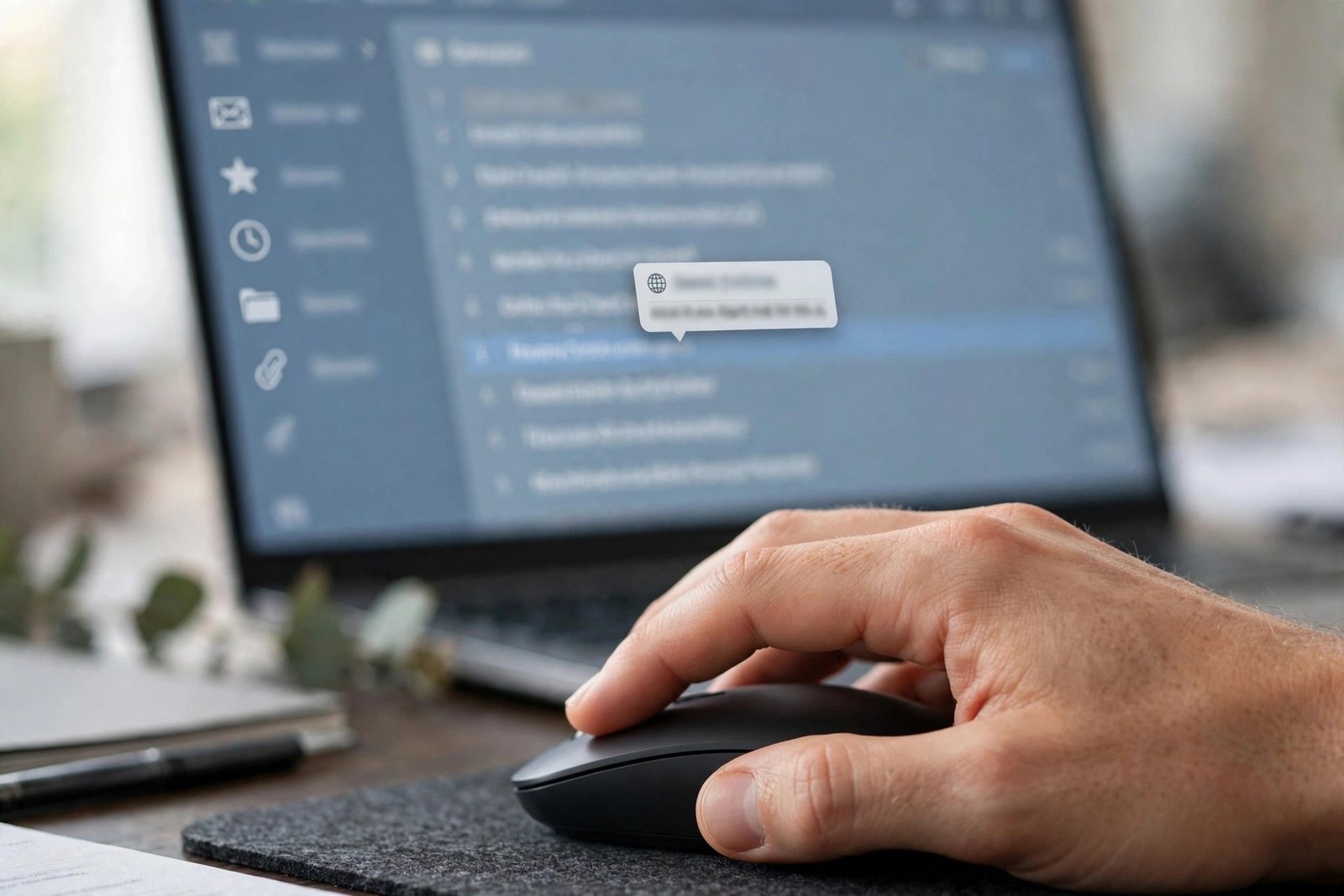
- On a computer, hover over the link (don’t click) and read the address your browser shows. If it doesn’t match the supposed sender or looks like a jumble of redirects, stop.
- On a phone, press and hold the link to preview where it goes.
- Be suspicious of shortened links and login pages you reached via a message. When in doubt, open your browser and go to the site yourself — type the address or use a bookmark.
This single habit defeats an enormous share of phishing attempts. The CISA guide to recognizing and reporting phishing puts link verification at the center of its advice for exactly this reason.
Red Flag #4: Unexpected Attachments
Invoices you didn’t order, “scanned documents,” shipping labels, voicemail files, shared-document notifications — attachments are a classic malware delivery method. Extra caution for:
- Files you weren’t expecting, especially with urgent framing (“see attached invoice — pay today”).
- HTML attachments that open what looks like a login page.
- Office documents asking you to “enable content” or click through to view.
Rule of thumb: if you weren’t expecting it, don’t open it. Verify with the supposed sender through a channel you already trust.
Red Flag #5: Generic Greetings and Off Details
“Dear Customer,” “Dear User,” “Hello Friend” — legitimate companies you do business with usually know your name. Generic greetings suggest a mass blast. Related tells: slightly-off logos, weird formatting, inconsistent fonts, or a footer that feels pasted together. (Note the honest caveat: AI-written phishing can be flawless now, so absence of sloppiness proves nothing. Presence of it is still a strong signal.)
Red Flag #6: Requests for Credentials, Money, or Gift Cards
No legitimate bank, government agency, or reputable company asks for your password, full Social Security number, or credit card details by email. And no real boss, tech-support agent, or government official asks you to pay in gift cards, wire transfers, or cryptocurrency — that demand is a near-certain scam signature. Any message combining an authority figure with an unusual payment method should be treated as hostile until proven otherwise.
Red Flag #7: The Offer Is Too Good to Be True
You won a prize you never entered. A miracle refund is waiting. A job offer with fantastic pay for no interview. Lures that exploit greed or curiosity work the same way as lures that exploit fear — they get you clicking before thinking. Any message combining an authority figure with an unusual payment method should be treated as hostile until proven otherwise.
How to Spot a Phishing Email in 60 Seconds: The S.L.A.M. Check
When a message asks you to click, download, log in, or pay, run the S.L.A.M. check — four questions, under a minute:
- S — Sender. Is the full email address genuinely from who it claims? Not just the display name.
- L — Links. Hover (or press-and-hold) — does the real destination match the claimed company?
- A — Attachments. Was I expecting this file? Would this sender normally send it this way?
- M — Message. Is it manufacturing urgency, demanding credentials or money, or asking for something this person would never normally request?
If any answer feels wrong, don’t reply, don’t click, don’t call numbers in the message. Instead, verify independently: start a fresh message to the official address, call a number from your own records, or open the site directly. The UK’s Stop! Think Fraud phishing checklist covers the same ground and is worth bookmarking for family members who need a simple reference.
Spot the Species: Phishing Types Compared
Email is the most common lure, but the same playbook runs on every channel. Here’s how the main variants work and the one-line defense for each:
| Type | How it works | Your defense |
|---|---|---|
| Email phishing | Mass fake emails impersonating companies or contacts, with malicious links or attachments. | Hover to verify links; never open unexpected attachments. |
| Spear phishing | Personalized attack using your name, role, or real details to look credible. | Personalization proves research, not legitimacy — verify the request itself. |
| Smishing | Fake texts about deliveries, bank alerts, or tolls with malicious links. | Don’t tap text links; open the company’s app or site directly. |
| Vishing | Phone calls posing as banks, tech support, or agencies demanding action. | Hang up and call back on a number you trust. |
| Business email compromise | Fake executive or vendor email requesting wire transfers or data. | Confirm payment changes by voice on a known number — always. |
| QR-code / quishing | Malicious QR codes in emails, flyers, or parking signs leading to fake login pages. | Preview the URL before opening; don’t scan codes from untrusted sources. |
Anatomy of a Real-World Lure
Here’s what the red flags look like together in one message. Study it — then compare it against your own inbox:
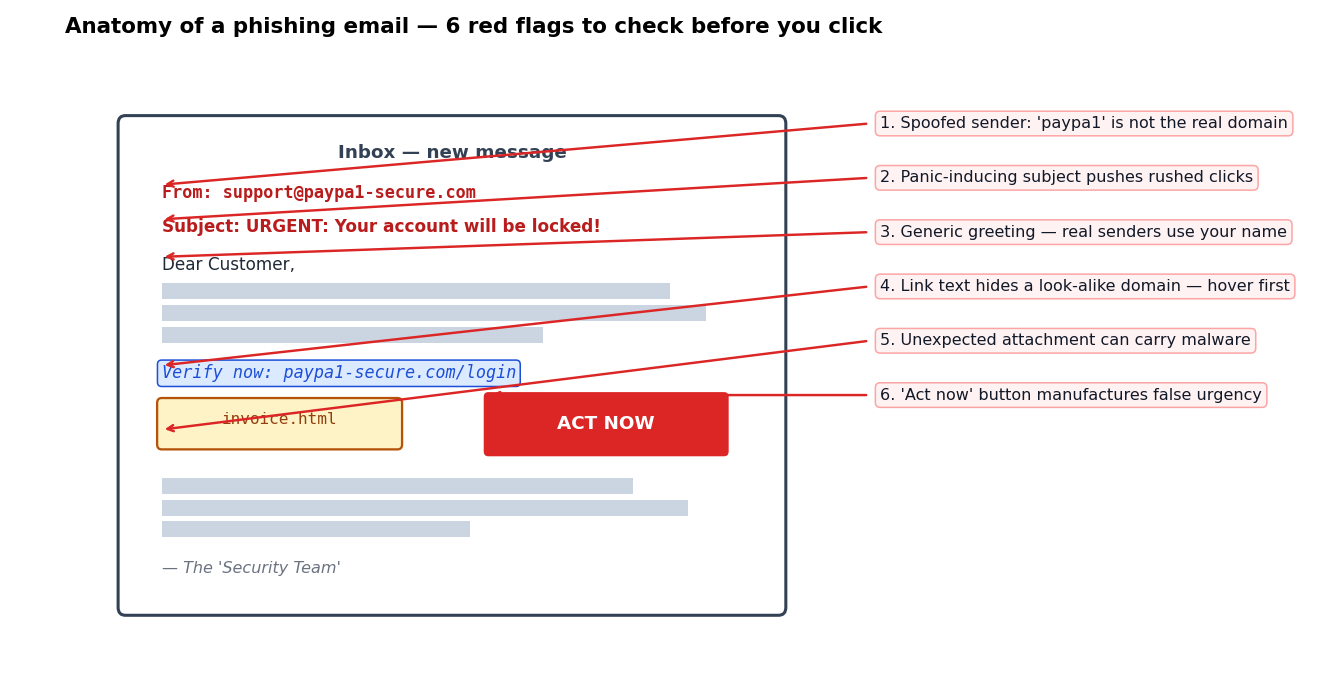
Notice how the message stacks tricks: a spoofed sender domain, a panic-inducing subject, a generic greeting, a link whose real destination differs from its text, an unexpected attachment, and a big red “act now” button. Any one of these warrants verification; together, they’re a textbook phish. NIST’s phishing guidance for small businesses walks through similar anatomy with checklists you can share with a team.
I Clicked. Now What?
It happens to careful people — especially with spear phishing. Speed matters now. Work through this list immediately:
- Disconnect and stop. Don’t enter any more information. If a download started, don’t open it.
- Change passwords for any account whose credentials you entered — and for any other account that reused the same password. Start with email, since it can reset everything else.
- Turn on multi-factor authentication (below) on every important account — it can block an attacker even with your password.
- Contact the real organization if financial accounts are involved; ask about freezing or monitoring.
- Scan your device with reputable antivirus/anti-malware software — and if your machine has been acting strangely, our guide on how to speed up a slow laptop covers cleanup steps that overlap with post-malware hygiene.
- Report it. Use your email provider’s “report phishing” button, forward it to your IT team if it’s a work account, and consider reporting to authorities — reports help get malicious sites taken down.
- Watch for follow-ups. Monitor bank and card statements for unfamiliar charges for the next few weeks.
One more thing: tell someone. Embarrassment keeps phishing profitable — attackers count on silence. Reporting quickly protects you and everyone the same campaign targets next.
Make Yourself a Harder Target
Spotting phishes is defense; these moves shrink the damage when one slips through:
- Enable multi-factor authentication everywhere it matters — email, banking, social media, work accounts. Authenticator apps or hardware keys beat SMS codes.
- Use a password manager with unique passwords per site. Bonus: password managers won’t autofill on look-alike domains, which quietly exposes many phishes.
- Keep software updated. Browsers and operating systems patch the vulnerabilities that malicious attachments and links exploit.
- Back up important data. Ransomware delivered via phishing loses its leverage when you have clean backups.
- Talk about it. Brief your family — especially older relatives and teenagers — on the S.L.A.M. check. A five-minute conversation is the cheapest security training there is. Students heading to college with a new device should also read our Chromebook vs. laptop comparison with security features in mind.
Frequently Asked Questions
How can you tell if an email is phishing?
Check the full sender address (not just the display name), hover over links to reveal their true destination, be wary of manufactured urgency and unexpected attachments, and never trust requests for passwords or payments by email. The S.L.A.M. check — Sender, Links, Attachments, Message — catches most attempts in under a minute.
What should I do with a phishing email?
Don’t click anything, don’t reply, and don’t call numbers in the message. Report it using your email provider’s phishing-report button (and to your IT team if it’s work-related), then delete it. If you want to verify, contact the organization independently through a channel you already trust.
Can phishing emails infect my computer without clicking anything?
Simply receiving or previewing an email rarely infects a modern, updated device — the danger comes from clicking malicious links or opening malicious attachments. Keep your software updated and never enable macros or “enable content” in unexpected documents.
What is the difference between phishing, smishing, and vishing?
They’re the same con on different channels: phishing uses email, smishing uses SMS/text messages, and vishing uses voice calls. All three impersonate trusted parties to steal information or money, and all three are defeated the same way — verify through an independent channel before acting.
I entered my password on a phishing site. What now?
Change that password immediately, plus every other account where you reused it. Turn on multi-factor authentication on all important accounts, scan your device for malware, and watch your financial statements closely. If banking credentials were involved, call your bank directly.
Are AI-generated phishing emails harder to spot?
Yes — AI lets attackers write flawless, personalized lures at scale, so grammar mistakes are no longer a reliable signal. But the structural tells remain: verify the sender address, inspect link destinations, and treat urgency plus a request for credentials, money, or access as hostile until proven otherwise.
The Bottom Line
Learning how to spot a phishing email comes down to one habit: pause and verify. Check the sender, hover the links, question the attachments, and interrogate the message — the S.L.A.M. check takes a minute and defeats the overwhelming majority of attempts. Layer multi-factor authentication and unique passwords underneath, know exactly what to do if you click, and spread the habit to the people around you. Attackers depend on haste. Take that away, and their best weapon stops working.




[…] phone and signing in everywhere, fake “verify your account” messages spike. Learn to spot phishing emails before you hand over your Apple ID or Google […]