How to Save Battery on Android: Samsung and Pixel Settings That Actually Work
Your phone was at 100% when you unplugged it at 7 a.m., and by 2 p.m. it is begging for a charger, even though you barely used it. If that sounds familiar, learning how to save battery on android is less about downloading a battery-saver app and more about flipping the right switches already on your phone. Samsung and Google have spent years building battery tools into Android, and most of them sit untouched in Settings while people blame the battery itself.
This guide covers the settings that actually move the needle on Samsung Galaxy and Google Pixel phones running Android 16 and 17: Adaptive Battery, charge limits, per-app controls, and the screen and connection settings that quietly eat power. No root, no paid apps — just the exact menu paths and what each setting really does.
Start With the Battery Usage Screen
First, find out what is draining your phone. Open Settings, then Battery, then Battery usage — the list is ranked by consumption since the last full charge, and the screen itself is almost always at the top. That is normal, since the display is the biggest power draw on any phone.
Look for the surprises instead: an app you barely opened sitting near the top is a red flag. Tap any app to see its foreground versus background usage. Background usage is the number that matters most for how to save battery on android — an app burning power while you are not using it is a settings problem, not a battery problem. Note the worst two or three offenders; the fixes below target exactly those apps.
How to Save Battery on Android With Adaptive Battery
Adaptive Battery is the single most important battery setting on any Android phone, and it is free and already installed. It learns which apps you use and quietly restricts the ones you rarely open, so they cannot wake the phone, sync in the background, or burn power while you sleep. Android Help describes it as a feature that limits battery use for apps you do not use often.
On a Pixel, the path is Settings, then Battery, then Adaptive Battery. On Android 16, the toggle may sit on a separate Adaptive preferences screen instead of appearing inline, so tap the Adaptive Battery row if there is no switch to flip. On a Samsung Galaxy, go to Settings, then Battery, then More battery settings, then Adaptive battery. It is usually on by default, but phones restored from a backup or set up by a carrier sometimes have it off, so check rather than assume.
Give it a few days before judging it: the savings grow as it learns which apps you open daily and which ones you forgot you installed. If an app you need starts delivering notifications late, set it back to Optimized or Unrestricted. Restrict the apps you ignore, not the ones you rely on.
Samsung: Battery Protection and Power Saving
Samsung gives Galaxy owners the best battery-health tool on Android. Open Settings, then Battery, then Battery protection. On phones running One UI 6.1 or later, you get three modes, and picking the right one matters more than any other change in this guide.
Basic mode charges to 100%, then stops until the battery drops to 95%. It helps, but the battery still spends hours at full charge. Maximum mode is the aggressive option: charging stops at a limit you choose — 80, 85, 90, or 95 percent on One UI 7 and later, a fixed 80 percent on One UI 6.1, and 85 percent on older software. Sleep time protection, called Adaptive on older One UI versions, holds the charge around 80 percent while you sleep and finishes to 100 percent shortly before you wake up. Samsung’s Battery protection guide explains each mode in full, and Samsung Support can confirm which modes your exact model offers.
Which mode should you pick? Maximum at 80 percent if you charge overnight and keep the phone for two years or more. Sleep time protection if you want a full battery every morning without the wear of sitting at 100 percent all night. Basic on days when you need every percent, such as a long travel day. On newer Galaxy phones running One UI 9 on Android 17, the same menu and modes apply.
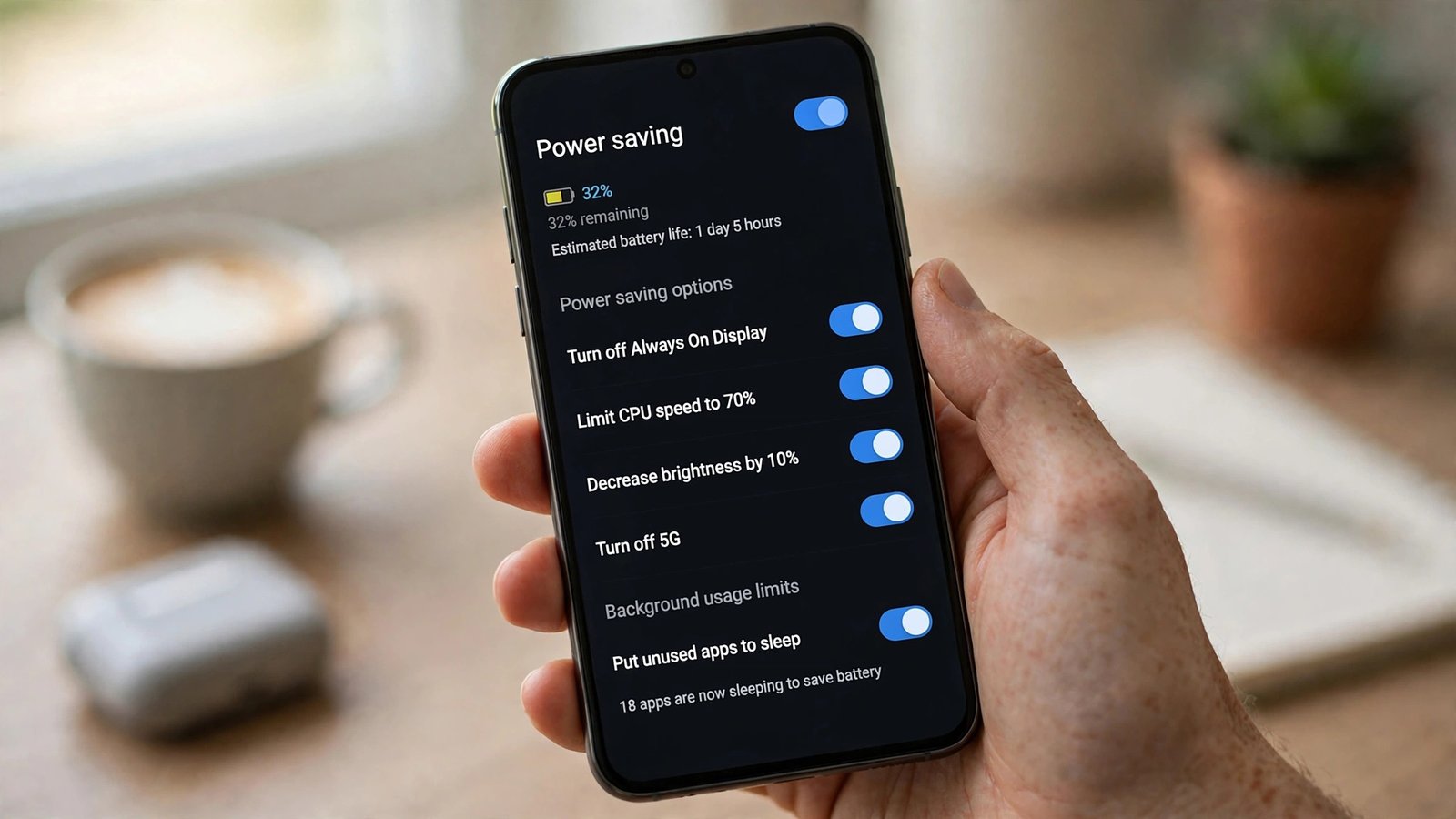
Next, set up Power saving as your safety net: Settings, then Battery, then Power saving, switching on automatically at 20 percent. It limits background sync, dims the screen, and trims performance — exactly what you want when the battery is low. You can also limit CPU speed from the same screen, but leave that off for everyday use.
Finally, use Samsung’s Background usage limits. Open Settings, then Battery, then Background usage limits, and turn on Put unused apps to sleep. Check the Deep sleeping apps list regularly: apps on it never run in the background, which is perfect for shopping apps and games you open once a month. Anything you need notifications from should stay out of the deep sleep list.
Pixel: Charging Optimization and Extreme Battery Saver
Pixel phones take a simpler approach, with two options under Settings, then Battery, then Battery health, then Charging optimization. Adaptive Charging learns your routine and holds the charge, finishing to 100 percent shortly before you usually unplug. Google says it needs about 14 days to learn your habits, so it may not work perfectly at first, and it may not switch on at all when your routine varies, such as when you travel. Limit to 80 percent, available on Pixel 6a and later, simply stops charging at 80 percent to slow long-term wear. It deliberately trades some daily battery life for a healthier battery years from now. Google also notes Pixels still charge fully every tenth cycle to keep the capacity reading accurate.
The same Battery health screen shows the state of your battery. On Pixel 8a and later, Settings, then Battery, then Battery health shows a status and an estimated capacity. Google rates Pixel 8a and later batteries to keep up to 80 percent of their capacity for about 1,000 charge cycles, and Pixel 3 through Pixel 8 Pro and Pixel Fold batteries for about 800 cycles. If yours reads Reduced, meaning capacity has fallen below 80 percent, it is time to think about a replacement. Samsung owners can check battery status in the Samsung Members app under Phone diagnostics. Google keeps adding battery features through its quarterly updates, and our November 2026 Pixel Drop roundup covers the latest additions.
For day-to-day saving, set up Battery Saver: Settings, then Battery, then Battery Saver, with a schedule so it turns on automatically at 20 percent. Standard Battery Saver limits background sync and location checks, dims the screen, and trims performance. Extreme Battery Saver is the emergency option: it pauses nearly every app except the essentials you choose, such as Phone, Messages, Maps, and WhatsApp, and can stretch a dying phone for many extra hours. Set your essential apps now, while the battery is full. These features ship with Android itself, so they work the same way across Pixel models.
Per-App Battery Settings: Stop the Worst Offenders
After Adaptive Battery, go after individual apps. On a Pixel, open Settings, then Apps, then See all apps, pick the app, then App battery usage, and choose Restricted. On a Samsung, long-press the app icon, tap App info, then Battery, and choose Restricted, or manage it from the Background usage limits screen. Restricted apps cannot run in the background at all. They still work perfectly when you open them; they just cannot wake the phone, sync, or track location while you are doing something else. Social media and shopping apps are the usual suspects, and restricting them is often worth more than any other single change.
While you are in App info, check two more permissions. First, location: set apps to Allow only while using the app instead of Allow all the time, unless the app genuinely needs constant location, such as navigation. Second, background mobile data: under Mobile data, switch off Allow background data usage for apps that have no business syncing on mobile data. If you carry an iPhone as a second phone, the same spring-cleaning applies, and our guide on how to free up storage on your iPhone walks through the equivalent cleanup.
Screen, Dark Mode, and Refresh Rate
The screen is the biggest single drain on any phone. Turn on Adaptive brightness and let the phone manage the level: maximum brightness is sometimes necessary outdoors, but leaving it there indoors is pure waste. Set the screen timeout to 30 seconds so a forgotten phone goes dark quickly instead of glowing on a table for two minutes.
Dark mode genuinely helps on Samsung and Pixel phones, because both use OLED screens where black pixels are effectively switched off. The saving is real but modest: dark mode trims the display’s power draw, it does not double your battery life. It is still worth turning on, especially if you spend hours in apps with dark themes. On an LCD screen, by contrast, dark mode saves almost nothing, because the backlight stays on regardless of what is displayed.
Refresh rate also costs power: high refresh rates feel smooth, but the screen redraws far more often. On Samsung, open Settings, then Display, then Motion smoothness, and choose Adaptive, which drops the rate on still screens, or Standard at 60Hz for maximum life. On Pixel, use the Smooth Display toggle under Settings, then Display. Adaptive is the sensible default.
5G vs Wi-Fi: When the Connection Costs You Battery
Your radio is a hidden drain that most battery guides ignore. As a rule, Wi-Fi uses less power than mobile data, and a 5G connection in a weak-signal area makes the modem work hardest of all, because the phone keeps searching for a stronger signal. The practical rule is simple: use Wi-Fi whenever it is available, and do not worry about which network icon is showing when the signal is strong.
The drain shows up in the gaps: in a basement or a building with thick walls, a phone on one bar burns far more power than the same phone on full bars, because the radio boosts its power to stay connected. On a truly dead signal, airplane mode with Wi-Fi left on stops the search entirely. Do not disable 5G permanently — on a good signal the difference is small — but if you sit at a desk all day on Wi-Fi, there is no reason to leave the modem straining on a weak 5G connection.
Battery-Health Myths vs Facts
Knowing how to save battery on android also means knowing which advice to ignore. Battery folklore is everywhere, and some of it actively shortens battery life. Here is what holds up and what does not.
| Myth | What is actually true |
|---|---|
| You must drain the battery to 0% before charging | False. Lithium-ion batteries prefer partial charges, and deep discharges add wear. Charge when it suits you. |
| Charging overnight ruins the battery | Partly true. Sitting at 100% for hours adds wear, which is exactly what charge limits and Adaptive Charging are designed to fix. |
| Closing apps from the recent-apps screen saves battery | False. Force-closing apps and reopening them uses more power than letting Android freeze them in memory. |
| Battery-saver apps extend battery life | Mostly false. They duplicate the built-in tools and often run constantly in the background themselves. |
| Dark mode doubles battery life | Exaggerated. It helps on OLED screens, but the effect is modest, not transformative. |
| Only use the charger that came in the box | False. Any good-quality certified charger is fine. Heat matters far more than brand. |
Heat is the thread running through all of this: batteries wear fastest when hot and full at the same time, so keep the phone cool and out of the sun while charging, and let the built-in limits do the rest. The same principles apply across platforms: our guide on how to make your iPhone battery last longer covers Apple’s side of the same story.
The 10-Minute Battery Tune-Up
One, turn on Adaptive Battery. Two, set a charge limit: Samsung Maximum at 80 percent, or Pixel Limit to 80 percent, or Adaptive Charging if you want a full battery every morning. Three, open Battery usage, find the worst background offenders, and restrict them. Four, set the screen timeout to 30 seconds and turn on Adaptive brightness. Five, turn on dark mode. Six, set Battery Saver to switch on automatically at 20 percent. Seven, change location permission to Allow only while using the app for everything except navigation. Eight, prefer Wi-Fi. Do that once, and the phone takes care of the rest.
Frequently Asked Questions
Should I charge my Android phone to 100% every day?
You can, and the phone will work fine. But if you plan to keep it for two or three years, an 80 percent limit slows long-term wear noticeably. Use Samsung’s Maximum mode or Pixel’s Limit to 80 percent for everyday charging, and switch to a full charge on days when you need every percent.
Does Adaptive Battery slow down my apps?
No. Adaptive Battery restricts background activity for apps you rarely use; it does not throttle the apps you open. If an app you need starts delivering notifications late, open its battery settings and set it back to Optimized or Unrestricted.
Why does my battery drain overnight?
Overnight drain usually comes from background sync, a weak mobile signal, or an app misbehaving. Check Battery usage in the morning and restrict any app that used a large share overnight. Charging with a limit also helps, because the phone is not sitting at 100 percent for hours.
Is it bad to use my phone while charging?
Light use while charging is fine. The real enemy is heat: heavy gaming or video recording while fast-charging generates a lot of it, and heat plus a full battery is the fastest way to wear a battery out. For everyday browsing and messaging, do not worry about it.
How do I check my Android battery health?
On Pixel 8a and later, open Settings, then Battery, then Battery health. On Samsung Galaxy phones, open the Samsung Members app, run Phone diagnostics, and tap Battery status. On other Android phones, the Battery usage screen shows which apps drain power, even if there is no health percentage to read.
Conclusion
That is how to save battery on android in 2026: not a magic app, but a handful of settings already on your phone. Turn on Adaptive Battery, set a charge limit that fits how you charge, restrict the apps that drain power in the background, and let the screen and connection settings work for you. Do the ten-minute tune-up once, check Battery usage again in a week, and you will see the difference. Your battery will last longer each day and stay healthier for years.