
You’re on a video call that matters, and right on cue the picture freezes, the audio turns robotic, and you hear “sorry, can you repeat that?” for the third time. Slow, flaky home WiFi is one of the most universal modern frustrations — and it’s rarely fixed by yelling at the router. This guide on how to boost WiFi signal at home starts with the free fixes that solve the problem for most households (router position, channels, bands), moves through the smart hardware upgrades (mesh, extenders, WiFi 6), and ends with knowing exactly when the problem is your internet provider, not your WiFi. Work through them in order; most people never need to spend a dime.
How to Boost WiFi Signal at Home: First, Diagnose the Problem
This distinction saves people from buying equipment they don’t need. Your internet speed is what your provider delivers to your home; your WiFi is how that signal travels from the router to your devices. Run a quick test: stand next to your router with your phone and run a speed test, then walk to the problem room and test again.
- Slow everywhere, even next to the router? That’s your internet plan or your provider’s line. Call your ISP or upgrade your plan — no router tweak will fix it.
- Fast by the router, slow in the far room? That’s a WiFi coverage problem, and everything below will help.
- Fast sometimes, slow at 7pm? That’s congestion — too many neighbors’ networks on the same channel, or too many of your own devices competing at peak time.
Write down both numbers before you start changing things. A “before” measurement is the only way to know which fix actually helped, and it stops you from chasing improvements you can’t see. If your laptop is also sluggish overall, remember slow WiFi isn’t the only culprit — there are separate steps to speed up a slow laptop that can compound the benefit.
1. Move the Router to the Center of Your Home
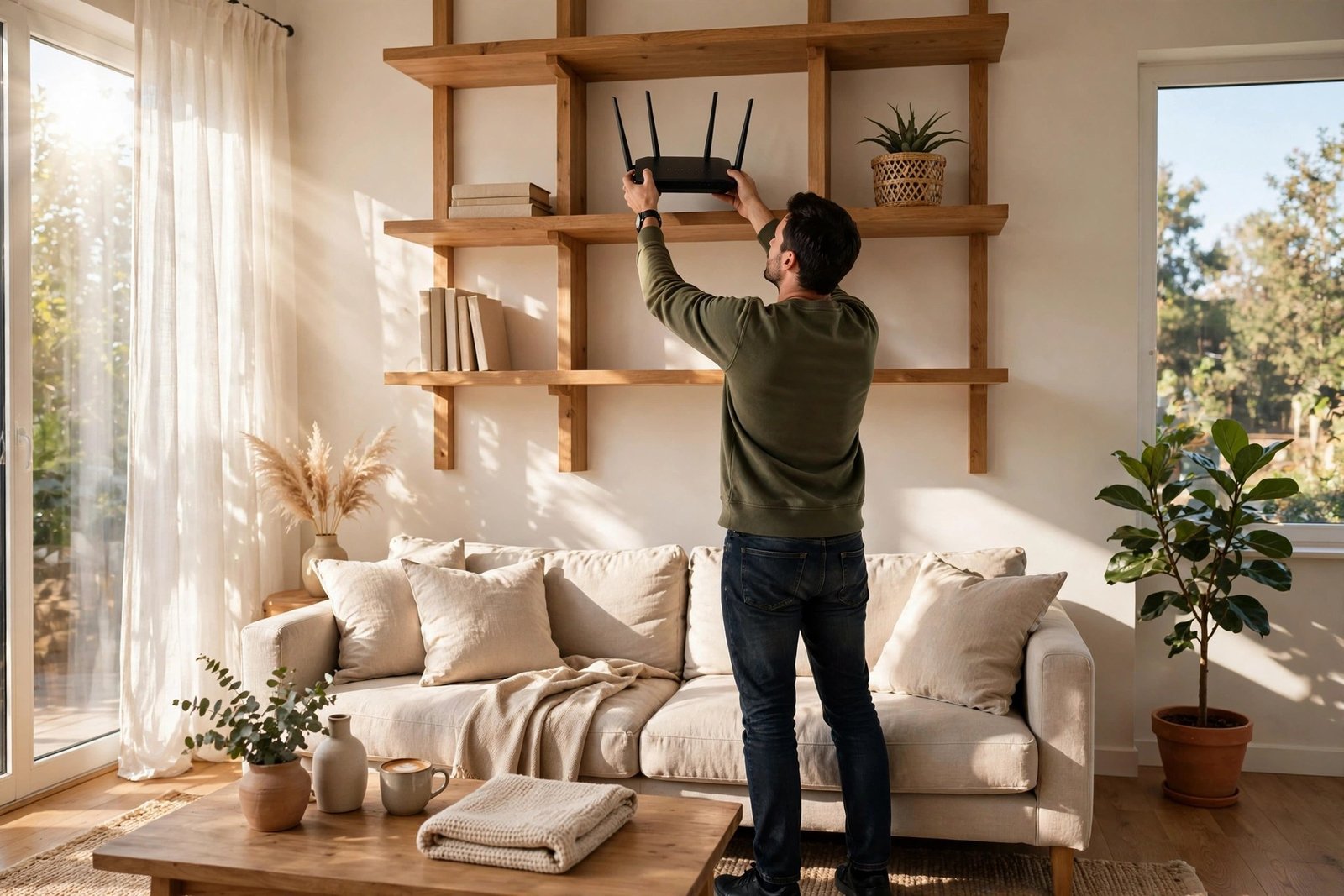
Router placement is the single biggest free win in home WiFi, and most routers sit in the worst possible spot — tucked behind a TV, buried in a cabinet, or parked in a corner office where the internet line happens to enter the house. WiFi radiates outward in all directions (roughly a sphere, flattened by antenna design), so every wall between the router and your devices weakens the signal.
The ideal placement rules are simple:
- Central and elevated. A high shelf in the middle of your home beats the floor in a corner every time. Signal spreads downward and outward better than upward from the floor.
- Out in the open. Cabinets, closets, and media consoles block signal. So do aquariums, mirrors, and thick concrete or brick walls.
- Away from interference. Microwaves, baby monitors, and some cordless phones all operate around the crowded 2.4 GHz band. Keep the router a few feet away from these, and don’t stack it on top of other electronics.
- Antennas up (mostly). On routers with adjustable antennas, pointing them straight up radiates signal horizontally across one floor — good for single-story homes. If you need coverage upstairs, angle a couple of antennas sideways.
This one change — moving the box six feet to a central shelf — fixes dead zones in a surprising number of homes.
2. Reboot and Update Your Router
Routers are tiny computers, and they accumulate the same cruft as any computer. A reboot clears stuck processes and memory leaks: unplug the router (and the modem, if separate) for 30 seconds, plug the modem back in first, wait for it to fully connect, then power up the router. If your connection degrades gradually over days or weeks, a monthly reboot often keeps it fresh.
While you’re at it, check for a firmware update in your router’s admin panel (usually at an address like 192.168.1.1, or through the manufacturer’s app). Firmware updates fix security holes and sometimes meaningfully improve stability and speed. Some modern routers update automatically — check the setting is on.
3. Pick the Right WiFi Band: 2.4 GHz vs 5 GHz vs 6 GHz
Most modern routers broadcast on two or three bands, and connecting to the right one for your situation matters more than most people realize.
| Band | Speed | Range & wall penetration | Best for |
|---|---|---|---|
| 2.4 GHz | Slower (up to a few hundred Mbps in practice) | Longest range, best at punching through walls | Far rooms, smart-home gadgets, doorbells, cameras |
| 5 GHz | Much faster (often 500 Mbps+ near the router) | Shorter range, weaker through thick walls | Streaming, video calls, gaming — near the router |
| 6 GHz (Wi-Fi 6E/7 only) | Fastest, least congested | Shortest range of all | Same-room high-bandwidth tasks (VR, huge file transfers) |
If your router combines everything under one network name, you may never think about this. But if you can see separate network names (like “Home” and “Home-5G”), the rule of thumb is: use 5 GHz when you’re close, 2.4 GHz when you’re far. A device clinging to a weak 5 GHz signal in a far bedroom will often get better real-world speeds by switching to the stronger 2.4 GHz signal. The 6 GHz band, available on Wi-Fi 6E and Wi-Fi 7 routers, is the fastest and least congested — but it has the shortest range, as TP-Link’s Wi-Fi 6 vs 6E comparison explains.
4. Switch to a Less Crowded Channel
In apartment buildings and dense neighborhoods, your router may be shouting over a dozen neighbors on the same channel. A WiFi analyzer app (there are free ones for every platform) shows which channels are congested around you. In the router’s admin panel, switch the 2.4 GHz band to channel 1, 6, or 11 (the only three that don’t overlap with each other) — whichever is least used near you. For 5 GHz there are many more channels, so congestion is less of an issue, but moving off a crowded one still helps.
5. Upgrade to WiFi 6 (or Newer) When Your Router Is Old
If your router is five or more years old, it’s probably running Wi-Fi 5 (802.11ac) or even Wi-Fi 4 (802.11n). Each generation has raised the ceiling on speed and — just as importantly — on how efficiently the router handles many devices at once. A family where four people are streaming, gaming, and video-calling simultaneously is exactly the scenario Wi-Fi 6 was designed for.
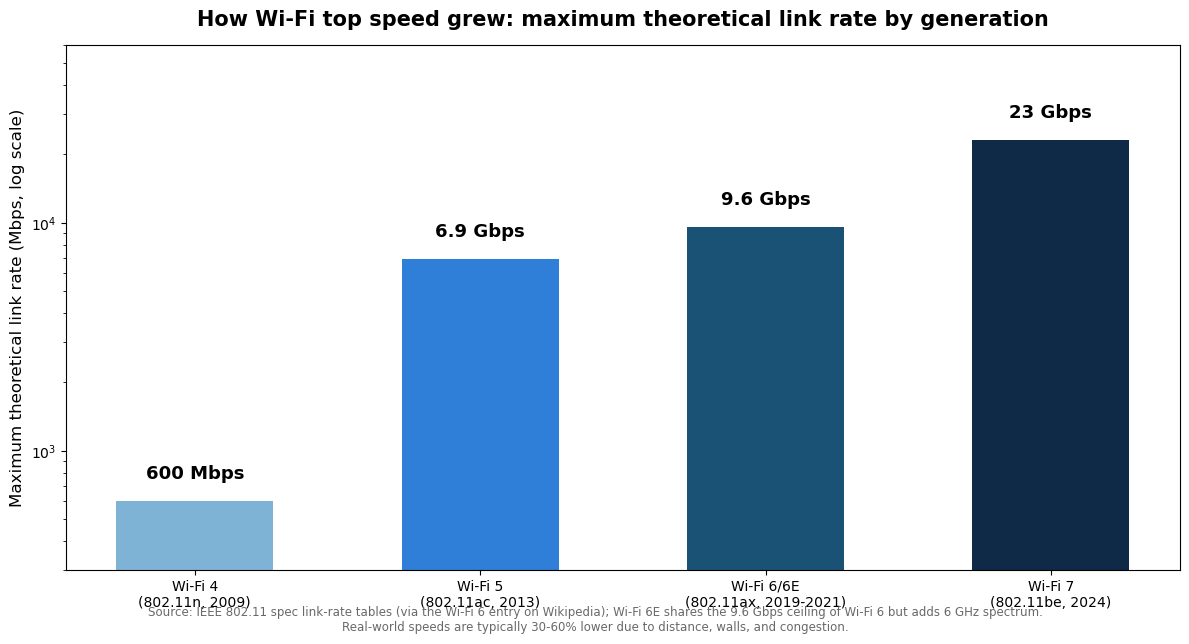
The chart above shows the maximum theoretical link rate of each Wi-Fi generation per the IEEE 802.11 specs — from 600 Mbps on Wi-Fi 4 to 9.6 Gbps on Wi-Fi 6 and up to 23 Gbps on Wi-Fi 7. Real-world speeds are lower (typically 30–60% of these figures thanks to distance, walls, and congestion), but the trend is real: a modern router delivers dramatically more headroom than an old one. The Wi-Fi Alliance’s announcement of Wi-Fi 6 certification highlights the other half of the story — better handling of crowded device-heavy homes, not just raw speed. For a deeper dive into what changed technically, see this Wi-Fi 6 explainer.
Practical advice: don’t chase the newest standard for its own sake. Wi-Fi 6 routers are now affordable and are the sweet spot for most homes; Wi-Fi 6E adds the 6 GHz band if your devices support it; Wi-Fi 7 is still premium-priced and only worth it if you have multi-gig internet and the devices to use it.

6. Fix Dead Zones: Extender vs Mesh vs Powerline
Sometimes one router simply can’t cover the house — long layouts, thick walls, or multiple floors. You have three main options, and they are not interchangeable:
| Option | How it works | Pros | Cons |
|---|---|---|---|
| WiFi extender | Rebroadcasts your existing signal halfway to the dead zone | Cheapest; simple setup | Halves bandwidth; creates a second network name; finicky placement |
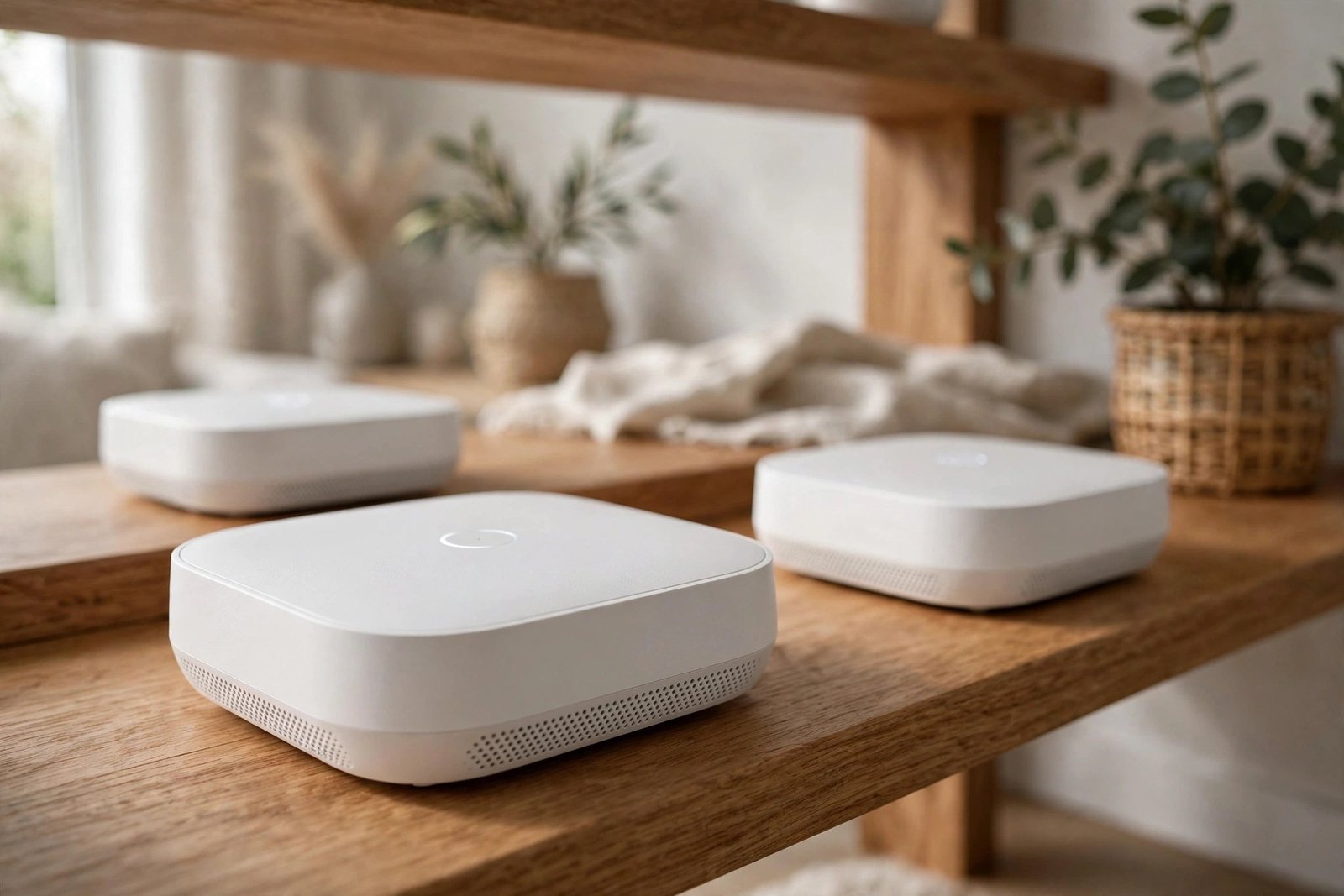
| Mesh system | Multiple nodes blanket the home in one seamless network | One network name, seamless roaming, best coverage | Priciest; nodes need good backhaul placement |
| Powerline adapters | Sends network signal through your home’s electrical wiring | Great for one stubborn room; no drilling | Speed varies with wiring quality; adapters must be on the same circuit |
For most homes with real dead zones, a mesh system is the best money you can spend on home networking. Extenders feel cheaper but often disappoint — they repeat a weak signal and cut throughput in half, so that “full bars” in the back bedroom can still feel slow. Powerline is the dark horse: perfect for getting a wired-like connection to a single room (a home office, a gaming PC) without running cable.
And don’t overlook the simplest wired fix of all: if your desk setup is near the router, plug in with an ethernet cable. Wired is always faster and more stable than wireless. For remote workers especially, a stable connection is the foundation of being productive while working from home — nothing kills focus like a call that keeps dropping.
7. Secure Your Network (and Kick Off Freeloaders)
An unsecured or weakly secured network doesn’t just risk your data — unknown devices on your network consume your bandwidth. Check your router’s connected-devices list for anything you don’t recognize. Use WPA3 security if your router supports it (WPA2 at minimum — never WEP), set a strong WiFi password, and consider a separate guest network for visitors and smart-home gadgets. IoT devices are a common weak link; isolating them on a guest network keeps a compromised smart bulb away from your laptop.
The same caution applies online: while you’re poking around router admin pages, never enter your router or ISP credentials from a link in an email or text. Learning to spot phishing emails protects every account you touch during a home-network overhaul.
8. Limit Bandwidth Hogs and Schedule Heavy Downloads
One device can quietly saturate your whole connection: cloud photo backups uploading, a game downloading a 100 GB update, a 4K stream running in a room nobody’s watching. Most routers have Quality of Service (QoS) settings that let you prioritize video calls and work apps over background downloads. Alternatively, just schedule the heavy stuff — set game updates and cloud backups to run overnight.
9. Know When to Call Your ISP
Some problems live outside your walls. Call your provider if:
- Speeds are far below your plan right at the router with a wired connection — that’s their problem to fix.
- The connection drops entirely at random times, especially during bad weather (often a damaged outside line).
- Your modem is ancient. ISPs sometimes supply outdated modems that cap your speed below your plan; ask if yours supports your current tier.
If your plan itself is the bottleneck — say, 25 Mbps shared between four people working and streaming — no amount of WiFi optimization will make it feel fast. As a rough guide, a work-from-home household generally wants at least 100 Mbps, and 4K streaming households should look higher.
Frequently Asked Questions
Why is my WiFi slow in one room but fine everywhere else?
Almost always distance plus obstacles. That room is likely far from the router with several walls (especially concrete, brick, or plaster-and-lath) in between, or there’s a source of interference nearby like a microwave or a neighbor’s router on the same channel. Try moving the router, switching bands, or adding a mesh node closer to that room.
Do WiFi boosters actually work?
Traditional plug-in extenders do boost the signal bars, but they repeat the signal at half the bandwidth, so speeds often disappoint. Mesh systems are the modern replacement and work much better because the nodes cooperate as one network. If you already own an extender, place it halfway between the router and the dead zone — not inside the dead zone, where it has nothing good to repeat.
Will a new router make my internet faster than my plan?
No — a router can’t deliver more than your ISP sends to your home. What a new router can do is waste less of it: better coverage, higher throughput to each device, and smarter handling of many devices at once. Test wired at the router first; if that matches your plan, the router or WiFi is the bottleneck.
How often should I reboot my router?
There’s no magic schedule, but a monthly reboot prevents the gradual slowdowns many routers develop. If you find yourself rebooting weekly to keep things working, that’s a sign the router is failing or underpowered — time to replace it.
Is 5 GHz always better than 2.4 GHz?
Not always. 5 GHz is faster but has shorter range and struggles with walls. In a far room, a strong 2.4 GHz signal will outperform a weak 5 GHz one. The right answer depends on where you are: close to the router, use 5 GHz (or 6 GHz); far away, use 2.4 GHz.
Conclusion
Boosting your home WiFi is mostly about doing the free things first: central placement, a reboot, the right band, a clearer channel. Those four steps solve the problem for the majority of households. If they don’t, the hardware ladder is clear — a modern Wi-Fi 6 router for old equipment, a mesh system for stubborn dead zones, powerline for that one impossible room. Measure before and after, change one thing at a time, and you’ll end up with a network that just disappears into the background — which is exactly what good WiFi should do.




[…] café — and if your home Wi-Fi is patchy in some rooms, it’s worth taking an afternoon to improve your Wi-Fi signal at home so your phone isn’t constantly falling back to […]