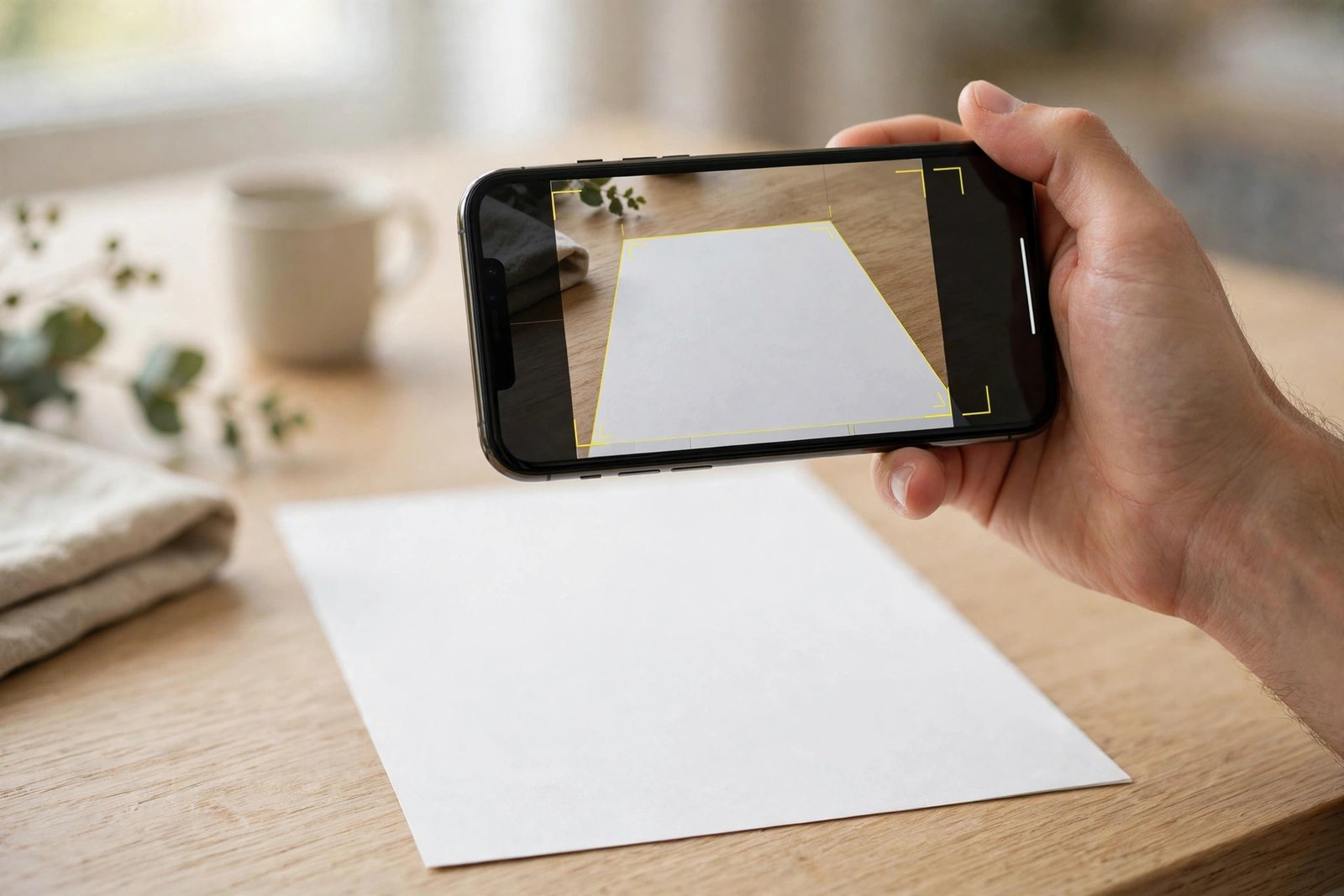

The receipt is crumpled, the deadline is in an hour, and you’re standing in a parking lot wondering how to scan documents with iPhone without downloading some ad-choked scanner app. Good news: you already own a very good scanner. It’s been hiding in the Notes and Files apps on your iPhone for years, and it turns paper into crisp multi-page PDFs in about a minute — no subscription, no watermark, no extra app required.
This guide covers all three ways to do it: the Notes app scanner, the Files app scanner, and the quick-action shortcut from your Home Screen. Then we’ll turn that scan into a shareable PDF, sign it, troubleshoot the usual hiccups, and look at when a third-party app actually makes sense. (One heads-up: button names vary slightly by iOS version — I’ll flag the differences as we go.)
How to Scan Documents With iPhone Using the Notes App
The Notes app is where most people should start. It’s the scanner Apple puts the most polish into, and the scan lives right inside a note — perfect for receipts you want to annotate, forms you’re filling out, or pages you want searchable alongside your typed notes. MacRumors’ walkthrough of the same feature confirms the flow below works on current iOS releases.
Here’s the process, exactly as Apple’s official guide to scanning on iPhone describes it for current iOS versions:
- Open the Notes app and either open an existing note or create a new one.
- Tap the Attachment button (the paperclip icon), then tap Scan Documents.
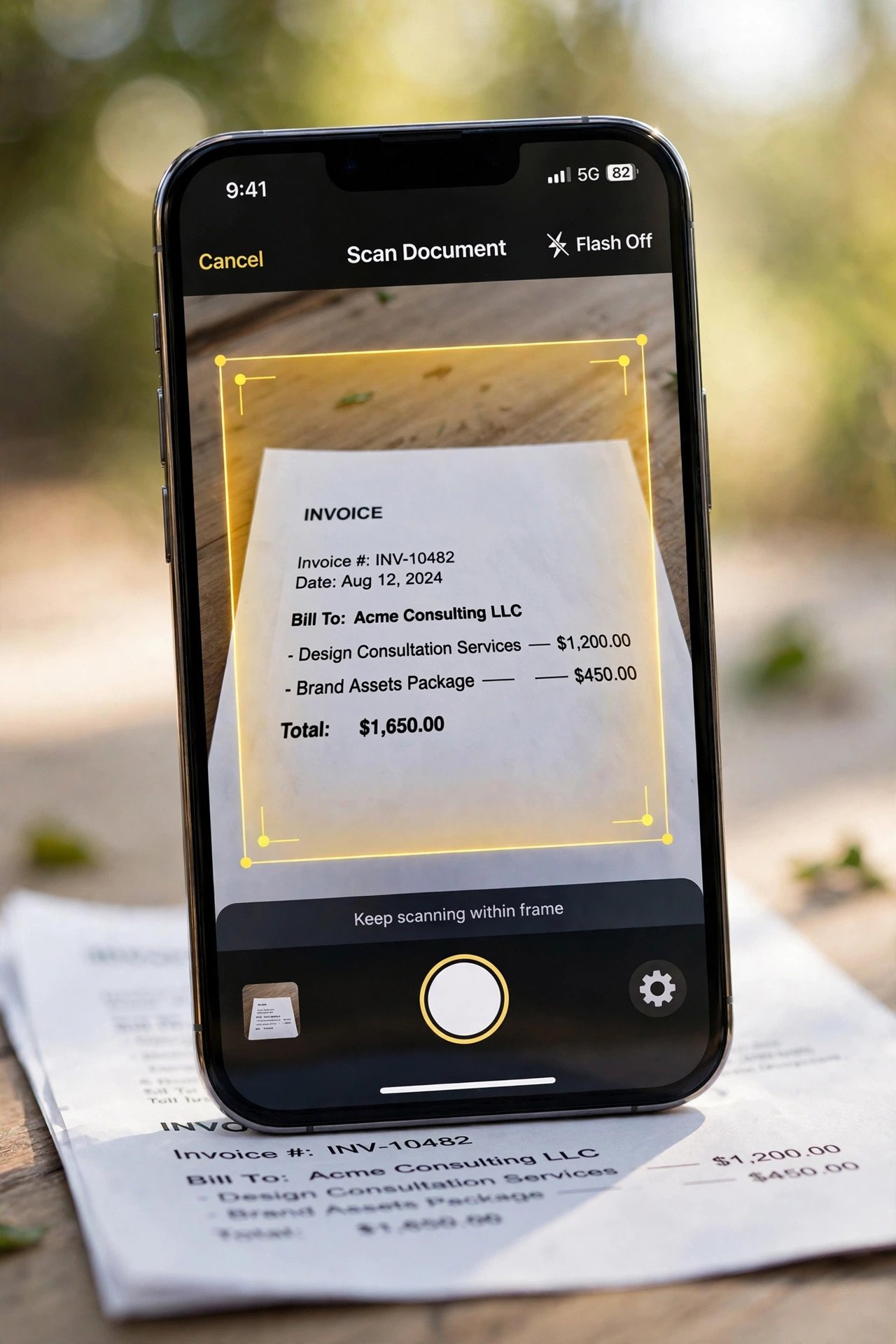
- Hold your iPhone over the document so the page sits inside the camera’s view. If your phone is in Auto mode, it detects the page edges and captures the scan on its own.
- Need more control? Switch to manual capture and tap the Shutter button (or press either Volume button) to take the scan yourself.
- Drag the corner handles to tighten the crop to the page edges, then tap Keep Scan (or Retake if the shot was blurry).
- Repeat for every page — the scanner stays open — then tap Done to finish.
One version note: on older iOS releases the flow differs slightly. On iOS 17 and earlier, you start from the camera icon above the keyboard instead of the Attachment button, and on iOS 18 and earlier the final button reads Save rather than Done. If any label doesn’t match your screen, look for the nearest equivalent — the underlying steps are the same.
Choose a Color Filter Before You Finish
Before saving, tap the filter icon to pick how the scan renders. The classic options are Color (keeps the original look), Grayscale, Black & White (the cleanest for text documents), and Photo. For anything with text — contracts, forms, receipts — Black & White gives you the sharpest, most readable result and keeps file sizes small. Flash and filter options also appear directly in the scanner view on recent iOS versions, so you can fix a dim room without leaving the camera.
Multi-Page Scans Are Automatic
Don’t close the scanner after the first page. After each Keep Scan, the camera stays live and ready for the next page, with thumbnails stacking up at the bottom of the screen. Scan page after page, then tap Done once — Notes combines everything into a single multi-page document.
Method 2: Scan Straight Into the Files App
The Notes method is great when the scan belongs with your notes. But if you want a standalone file sitting in a folder — a lease in your Documents folder, tax paperwork in iCloud Drive — the Files app scanner skips the middleman. Apple’s own instructions:
- Open the Files app and tap Browse at the bottom.
- Tap the More button (the three dots in a circle) at the top, then tap Scan Documents.
- Capture each page exactly as in the Notes steps — automatic edge detection, manual Shutter or Volume-button capture, corner adjustment, Keep Scan.
- Tap Done when you’ve scanned every page.
- Choose a location — a folder in iCloud Drive or On My iPhone — and tap Save.
The scan lands as a PDF right in the folder you picked. Give it a proper name while you’re there: touch and hold the file, tap Rename, and type something you’ll actually find later (“lease-2026.pdf” beats “Scan 1.pdf” every time). The file syncs to your other devices if it’s in iCloud Drive, which makes this the best method for documents you need on your Mac or iPad too.
Method 3: The Lock-Screen-Fast Shortcut — Long-Press the Notes Icon
There’s a faster door into the same scanner, and most iPhone owners never find it. You don’t have to open Notes and hunt for the attachment button at all:
- On your Home Screen, long-press the Notes app icon.
- Tap Scan Documents in the quick-action menu that pops up.
- That’s it — the scanner opens immediately, with the scan saved into a new note.
It’s genuinely a three-second maneuver once it becomes muscle memory: press, tap, point. If Notes isn’t on your Home Screen, add it from the App Library first — the quick action only appears on the actual icon. For anyone who scans paperwork several times a day, this shortcut alone is worth learning.
How to Turn Your Scan Into a PDF, Sign It, and Share It
Here’s the part people overcomplicate. Scans made in Notes are already saved as PDFs inside the note — there’s no conversion step. To get that PDF out into the world:
- Open the note and tap the scan to view it full-screen.
- Tap the Share button (the square with the arrow pointing up).
- Choose your destination: Mail or Messages to send it directly, AirDrop to beam it to your Mac, or Save to Files to file a standalone copy in any folder.
If the scan came from the Files app, it’s already a PDF in your chosen folder — long-press it and tap Share for the same options.
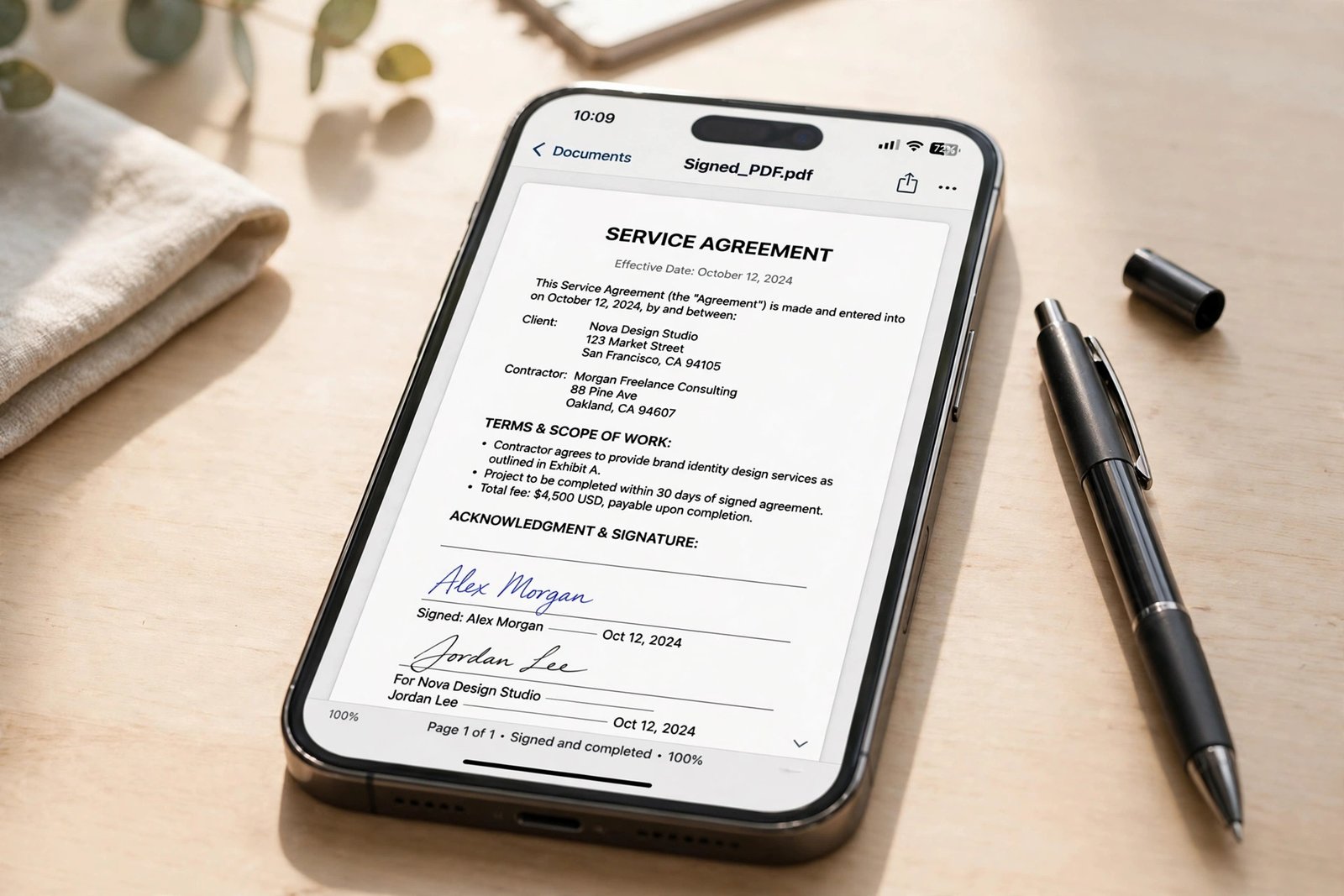
Signing a Scanned Document on iPhone
Need to sign that form you just scanned? Stay in Notes:
- Open the note and tap the scanned document.
- Tap the Markup button (the pen tip icon).
- Tap the Add button (the plus sign), then tap Signature.
- Add a saved signature or draw a new one, then drag and resize the signature box exactly where it belongs on the page.
- Tap Done.
You can draw freehand with a finger too, but a saved signature stays consistent across documents — set it up once and every future form takes seconds. This is the whole paperless loop on one device: scan, sign, send, done.
When the Built-Ins Aren’t Enough: Third-Party Scanner Apps
For most people, Notes and Files cover everything — capturing, multi-page PDFs, signing, and sharing are all handled. But two situations call for a dedicated scanner app: you scan constantly and want automatic cloud backup and organization, or you need serious OCR (optical character recognition) that turns your scans into fully searchable, selectable text.
Adobe Scan
Adobe’s guide to scanning PDFs on iPhone covers its own free app, Adobe Scan, which does automatic edge detection and text recognition so your scans become searchable PDFs. It’s the natural pick if you already live in Adobe’s ecosystem or if searchable text is the whole point of scanning for you.
A Heads-Up: Microsoft Lens Is Retired
If you’ve read older scanner roundups, they’ll all recommend Microsoft Lens. Don’t install it. Microsoft retired the app in early 2026: it was pulled from the App Store in February, and creating new scans was disabled in March 2026. If you still have it on your phone, you can view old scans, but it can’t capture new ones anymore. Microsoft’s replacement is the scanner built into OneDrive — open OneDrive, tap the + button, and choose Scan photo to capture documents straight into your cloud storage. (A detailed guide to the Microsoft Lens retirement walks through the timeline if you’re migrating old scans.)
Notes vs Files vs Adobe Scan: Which Should You Use?
Quick side-by-side so you can stop thinking about it and start scanning:
| Method | Cost | Multi-page PDF | Where files are saved | Searchable text (OCR) | Best for |
|---|---|---|---|---|---|
| Notes app | Free, built in | Yes | Inside the note (share or Save to Files for a copy) | Basic | Quick scans alongside notes; scanning + annotating + signing in one place |
| Files app | Free, built in | Yes | Any folder in iCloud Drive or On My iPhone | Basic | Organized filing; scans you need on Mac or iPad too |
| Adobe Scan | Free | Yes | Adobe cloud | Yes — searchable PDFs | Text-heavy documents you need to search or copy text from |
| OneDrive scanner | Free (Microsoft account) | Yes | OneDrive | Varies | Microsoft 365 users; the official Microsoft Lens replacement |
The short version: Notes for speed, Files for organization, Adobe Scan for searchable archives, OneDrive if your digital life runs on Microsoft.
7 Tips for Clean, Professional-Looking Scans
- Light it evenly. Bright, indirect light is the single biggest quality lever. Avoid your own shadow falling across the page — stand slightly to the side or rotate the document so the light hits it straight on.
- Put it on a flat, contrasting surface. A dark desk under white paper helps the edge detection find the page instantly. Curled pages are the enemy; flatten them under a book for a minute first.
- Hold steady — or don’t hold it at all. Rest your elbows on the desk, or prop the phone against something. Auto mode only fires when the image is stable, so shaky hands mean waiting.
- Fill the frame. Get close enough that the page nearly fills the viewfinder before the auto-capture fires. Less background means sharper text and smaller files.
- Batch your scanning. Stack everything you need to scan, work through the pile with the scanner open, and tap Done once at the end. You can reorder, delete, or re-scan individual pages from the thumbnail strip before saving.
- Back up your scans. A scan that lives only in one note is one dropped phone away from gone. Keep important documents in iCloud Drive via the Files method, and back up your iPhone regularly so your whole scanned archive survives a lost or broken device.
- Keep a charge. Long scanning sessions with the camera and screen on drain the battery faster than normal use. If you’re digitizing a whole filing cabinet, start with a full charge — or read up on how to make your iPhone battery last longer before a big archiving afternoon.
Troubleshooting: Why Your iPhone Scan Isn’t Working
The scanner isn’t detecting the page edges
Switch to manual capture: tap the Shutter button (or press a Volume button) to take the scan yourself, then drag the corner handles to the page edges and tap Keep Scan. Poor lighting and busy backgrounds are the usual culprits — move to better light or a plainer surface and try again.
Scans are coming out blurry
Auto mode waits for a stable image before firing, so blur usually means you moved too soon or the light was too dim for a fast shutter. Hold still until it captures, get closer, and add light. If a page is still soft, tap its thumbnail and hit Retake rather than living with it.
I can’t find “Scan Documents” anywhere
Check two things. First, your iOS version: the button path changed over the years — look for the Attachment button on current iOS, the camera icon on iOS 17 and earlier. Second, make sure you’re in the right place: Notes hides it inside a note’s attachment menu, Files hides it under the More button (three dots). It’s never on the main app screen.
I can’t find my scan afterward
Notes scans live inside the note you scanned from — they don’t appear in Files unless you explicitly tap Share → Save to Files. Files scans live in whatever folder you chose on the Save screen. If you picked a folder and can’t find it, open Files and use the search bar at the top — it searches file contents and names across iCloud Drive.
Frequently Asked Questions
Do I need to download an app to scan documents on iPhone?
No. The scanner is built into the Notes and Files apps that ship with every iPhone, and it handles multi-page PDFs, signing, and sharing with no extra downloads. Third-party apps like Adobe Scan only earn their place if you need advanced OCR or heavy-duty organization.
Which iPhones can scan documents?
Any iPhone running a current or recent version of iOS. Apple introduced document scanning in Notes years ago (back in the iOS 11 era) and later added it to Files, so unless your iPhone is stuck on very old software, the feature is already on your phone — check Settings → General → About to see your version.
Can I scan multiple pages into one PDF?
Yes. After each page, the scanner stays open and ready for the next one. Keep scanning pages and tap Done (or Save on older iOS) once — everything is combined into a single multi-page PDF. You can also reorder or delete pages from the thumbnail strip before finishing.
Can I sign a scanned document on my iPhone?
Yes. Open the scan in Notes, tap the Markup button, then the Add button, then Signature. Add a saved signature or draw one, position it on the page, and tap Done — no printing required.
Is Microsoft Lens still available for iPhone?
No. Microsoft retired Lens in early 2026 — it left the App Store in February and lost the ability to create new scans in March. Use the scanner in Apple’s Notes or Files apps instead, or OneDrive’s built-in scanner if you want a Microsoft product.
Where do my scans get saved?
Notes scans stay inside the note as a PDF — use Share → Save to Files if you want a standalone copy. Files scans go exactly where you put them: the folder you selected before tapping Save. For either method, filing important documents in iCloud Drive keeps them synced across your devices.
Conclusion
Learning how to scan documents with iPhone takes about two minutes and pays off forever. The Notes app gives you the fastest path — especially via the long-press shortcut — the Files app gives you the most organized one, and between the two, plus built-in signing and sharing, there’s genuinely nothing left that a paid scanner app used to justify. Scan the pile on your desk today, back it up tonight, and enjoy the strange satisfaction of a paper-free drawer.